The useful result of reading a report is a set of findings you can discuss, evidence you can return to, and a document your colleagues can keep working on. This guide connects PDF reading, comparison across sources, and document translation into one practical sequence: understand the material, check the evidence, and prepare the handoff.
For research across several sources, start with Gemini Notebook, formerly NotebookLM. For work that also involves editing PDFs, consider Acrobat. For whole-document translation, explore DeepL. For an occasional foreign-language attachment, Google Translate offers a simple starting point.
Choose around the deliverable
| Your task | Start with | Role in your workflow | Deliverable |
|---|---|---|---|
| Compare several reports and identify agreement or disagreement | Gemini Notebook / NotebookLM | Keep a selected collection of sources together and ask focused questions | A sourced brief and comparison table |
| Read a PDF, then edit, convert, annotate, or share it | Adobe Acrobat Studio | Combine document understanding with file operations | An editable document or annotated PDF |
| Hand a Word file, presentation, or PDF to colleagues in another language | DeepL | Translate the file, then review terminology and layout | A translated file and glossary |
| Quickly read a foreign-language office attachment | Google Translate | Translate a document through the browser | A translated document to read or download |
These are editorial recommendations based on the job each product is designed to support. For a research brief, prioritize the connection between claims and sources. For a bilingual document, prioritize terminology, layout, and an editable format. A tool becomes more useful when you know what the finished work should look like.
Four tools and their place in the process
01 / Gemini Notebook: turn a collection of files into a research workspace
Gemini Notebook is the current official name of NotebookLM. You can add sources such as PDFs, Word documents, and web pages, select the relevant material, and ask questions around it. Standard access includes 50 sources per notebook; the Google AI Pro tier supports 300. Supported sources · Official plans and limits
Its role is particularly clear in a vendor comparison. Put three product documents in one notebook. First extract capabilities, then compare deployment options, then locate each vendor's explanation of data export. Keeping those questions beside the same source collection makes the final comparison easier to inspect.
A useful first session: create one notebook for a project. Name each source with its organization, subject, date, and version. Ask for an inventory of the material before requesting conclusions. Follow citations back to the original passage and read the surrounding conditions. Save the checked findings and use them to build a short brief.
When an upgrade earns its place: a project needs substantially more sources, or research becomes a regular part of the day. For a first comparison involving a handful of files, standard access is a practical place to establish the process.
Open Gemini Notebook · Google AI plans
02 / Adobe Acrobat: connect reading with the work of handling PDFs
Acrobat AI Assistant supports document questions and summaries with references back to the material. Acrobat Studio combines AI features with PDF editing, conversion, and PDF Spaces. This makes it relevant when understanding a document is one part of a longer file-handling task. Adobe features and plans
Consider a project specification that must be read, annotated, revised, and returned to another team. An initial summary helps locate the sections that deserve attention. The value of Acrobat then continues through the edits and the final PDF handoff.
A useful first session: check whether text can be selected and tables remain legible. Run text recognition when you are working with a scan. Ask for the document structure and a list of items to investigate. Follow the references, annotate the relevant passages, and make the required edits. When converting to Word, review heading levels, tables across pages, and headers or footers.
Read the plan contents carefully: Reader covers viewing and annotation; Pro and Studio provide different combinations of document and AI capabilities. Existing Acrobat customers can use Adobe's upgrade entry point to explore the options attached to their account.
03 / DeepL: produce a translated file that remains useful to the next editor
DeepL offers whole-file translation for office documents, including Word, PowerPoint, and PDF, with layout preservation and terminology-related customization. It is a strong candidate for training materials, product documentation, and recurring documents that share a professional vocabulary. DeepL document translation
Whole-file translation helps retain the relationship between headings, paragraphs, tables, and notes. The next stage can concentrate on language review and formatting instead of rebuilding the document from individually translated paragraphs.
A useful first session: obtain the DOCX or PPTX source when available. Prepare the product names, department names, abbreviations, and preferred translations before uploading. Select the language direction and the terminology features included in your chosen plan. Review the translated document alongside the source. Customer-facing language deserves a final editorial pass for the intended audience.
Plan selection: short text can start in the free translator. For recurring file translation, compare the number and size of documents, glossary features, and team administration. DeepL's purchase flow presents regional plans and prices; choose your purchasing region and inspect its document allowance. DeepL plans
04 / Google Translate: a quick route into an unfamiliar document
Google Translate on a computer accepts DOCX, PDF, PPTX, and XLSX documents up to 10 MB, with a 300-page limit for PDFs. Text inside images and scanned pages needs separate handling. This suits occasional manuals, attachments, and presentations. Google document translation help
A useful first session: open the Documents tab, select the source and target language, upload the file, and download the translated version. To read it on a phone, complete the document translation on a computer and then transfer or synchronize the result.
For repeated professional material, keep a simple glossary beside the translated files. Before sharing, check titles, names, figures, units, and the correspondence between sections. This small habit makes a lightweight translation workflow much easier to maintain.
Prices and the cost of the workflow
Figures below use US website prices in USD and retain the billing term. Regional plans and applicable taxes appear in the purchase flow.
| Product or plan | Price | Useful for | Check before choosing |
|---|---|---|---|
| Gemini Notebook Standard | Free | Small source collections and document questions | 50 sources per notebook |
| Google AI Plus | US$4.99/month | A step up from standard usage | Notebook Plus: 100 sources per notebook |
| Google AI Pro | US$19.99/month | Ongoing research with larger collections | Notebook Pro: 300 sources per notebook |
| Acrobat Reader | Free | Reading, sharing, and annotating PDFs | Which plan contains the AI and editing features you need |
| Acrobat Studio | US$24.99/month on an annual commitment billed monthly; US$34.99 on a monthly subscription | PDF editing and AI document work | Annual cancellation terms and existing-account upgrades |
| DeepL | Free text translation; paid file plans selected in the regional purchase flow | Recurring whole-document translation | File allowance, size, terminology, and collaboration |
| Google Translate website | Free | Occasional office document translation | File type, 10 MB limit, and PDF page count |
Price sources: Google AI, Notebook limits, Adobe, and DeepL.
A practical budget decision: use your first week to identify the slowest part of the process. If source capacity interrupts research, put the budget into the research tool. If translated layouts need repeated repair, investigate file translation. If every assignment includes PDF changes, a combined editing subscription may carry more of the workload.
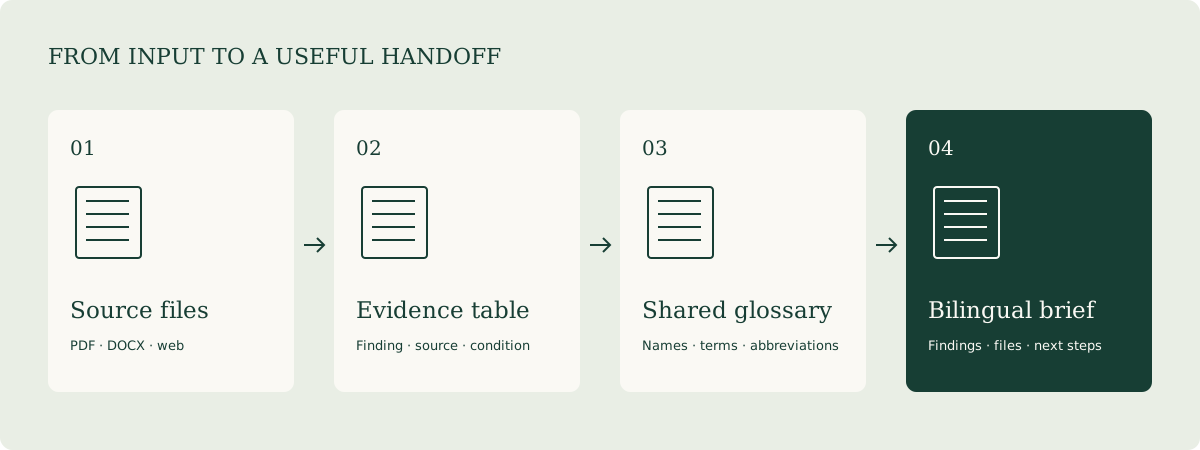
Workflow: three source files into a bilingual project brief
Step 1. Define the decision and the reader
Write down who will read the brief, what decision they need to make, and what format they need. For example: “Compare three software vendors for a project manager, with a two-page bilingual brief and a capability table.” This focuses the extraction on useful information. A request to summarize everything leaves the reader to do much of the prioritization afterward.
Step 2. Create a source register
Name files using organization_subject_publication-date_version. Record the file name, original link, version, language, and relevant date in a small table. When versions disagree, mark their relationship. For web material, retain the access date so the next update can be traced.
Step 3. Extract facts before writing conclusions
Ask for five columns: question, source information, location, applicable conditions, and information still needed. Check the figures and conditions first. A statement that software supports local deployment becomes more useful when it also explains the operating system, required components, license, and maintenance responsibilities.
Step 4. Build a compact glossary
Start with 15–30 recurring terms. Include the original expression, preferred translation, when to preserve the original, and an example. Keep official product names consistent. Expand an abbreviation on first use and then use it consistently across headings, prose, and tables.
Step 5. Translate an editable version
Turn the checked findings into a DOCX brief, then translate that file. The translation effort now concentrates on the material you intend to deliver. If the reader also needs full translations, store the originals and complete translations separately and link them from the brief.
Step 6. Check the bilingual handoff
Compare dates, amounts, units, names, table columns, and source links. Look for headings that wrap awkwardly, tables that lose their headers across pages, and links that stopped working. Include a version date, a responsible editor, and the next actions so colleagues can continue the work.
Two prompts to copy and adapt
Compare source material with evidence attached
Goal: create a vendor comparison brief for a project manager using the supplied sources.
First list each source's file name, date, and subject.
Then extract information about deployment, core features, data export,
team collaboration, and cost components.

Return a table:
Dimension | Vendor A | Vendor B | Vendor C | Source location | Follow-up question.

Keep the unit, time period, and applicable conditions with every important number.
Use “Information needed” for fields the material does not answer.
Show differing statements from different sources separately.
Finish with three findings, two tradeoffs, and the questions to resolve next.
Review a translation as a list of actionable edits
Compare the source document with the translation for an international project team.
Apply the preferred terms in the attached glossary.
Preserve product names, variable names, and links.
Focus on numbers, units, dates, names, negation, conditions, and cause-and-effect statements.

Return a review table:
Source passage | Current translation | Suggested translation | Reason | Section.

Then provide a clear, natural revised version using the original heading and list structure.
Expand professional abbreviations on first use and keep later references consistent.
What a useful brief contains
Use the following structure as a team template.
| Component | Include | How to review it |
|---|---|---|
| One-page findings | The task, three findings, and proposed next steps | The reader can describe what happens next |
| Evidence table | A source, location, and condition for each finding | Open the link or locate the passage |
| Bilingual body | Corresponding sections and consistent terms | Review the two languages side by side |
| Open questions | Missing information, owner, and target date | Each item has a path to resolution |
| Attachments | Originals, editable translations, glossary, version record | A colleague can resume the work |
Download a bilingual glossary CSV · Download the document brief template
When the workflow gets stuck
A PDF table comes out in the wrong order. Obtain the XLSX or DOCX source where possible. Otherwise, inspect the rows and columns before analysis. Reconnect headers and continued sections in tables that cross pages.
A polished summary misses the actual question. Narrow the task to a decision, such as whether all historical data can be exported. Ask for the evidence, conditions, and the next question to investigate.
Two sources appear to contradict each other. Compare their dates, versions, and intended users. Establish whether they describe the same conditions. Include the disagreement in the brief so the reader can see what needs clarification.
Terminology changes from paragraph to paragraph. Update the glossary first, then apply it throughout the document. This carries the correction into the next assignment as well.
The files contain internal or customer information. Choose the approved work account for the document's classification, remove personal details unrelated to the task, and set the sharing scope. Recording these choices in the template makes collaboration easier to repeat.
Continue with the numbers behind the documents
Orders, costs, and business metrics belong in a structure that can be calculated and reused. Continue with the Spreadsheets & Data Analysis guide and its sample order file. If the brief is heading into a meeting, the Meetings & Action Items guide shows how to carry the discussion into a clear follow-up list.