A presentation has three jobs: identify what matters in the material, put the ideas in an order people can follow, and make the next decision clear. AI can help organize the draft and arrange the page. The useful result connects evidence, a point of view, and an action the audience understands.
This guide compares Gamma, Canva, and Beautiful.ai through three working styles: organizing a first draft, taking direct control of the visuals, and maintaining recurring business decks. You can finish a project in one tool. If you combine tools, decide where the final presentation will live before moving content between them.
Product features and plans are drawn from official public documentation. Recommendations focus on workflow fit. The project, data, and diagrams below are original ToolAI teaching examples. All three products have overlapping generation and editing capabilities; we focus on where to start for a particular job.
Choose the handoff before choosing the tool
Before opening a presentation maker, write down the audience, the decision they need to make, the evidence you have, and the required format. A web link, a PDF for review, and a PowerPoint file that another team must maintain can lead to different choices even when the subject stays the same.
| Your main job | A useful starting point | Reason for the choice | Check in the first trial |
|---|---|---|---|
| Turn notes or an outline into a complete draft | Gamma | Begin with content structure, then refine the cards and delivery | The important claims survive; pages work in the destination format |
| Design a deck alongside brand images and campaign material | Canva | Continue adjusting imagery, elements, and content in a visual editor | Fonts, asset permissions, language, and team editing |
| Produce similar business reports or proposals repeatedly | Beautiful.ai | Structured layouts and themes can support a repeatable deck standard | Common charts, long headings, and exported files |
| Preserve an existing PowerPoint master | Start with a round-trip sample | Template inheritance and future editing matter in this workflow | A recipient can actually edit a sample in their presentation software |
Try the same small source brief in two candidates. Keep a text slide, a data slide, and an image slide. Then make three realistic changes in the receiving application: lengthen the title, replace a number with next month's value, and change the image. This is a useful rehearsal for the maintenance work that follows the first generation.
Gamma: organize scattered material into a draft worth discussing
Gamma is a candidate for starting with an outline, text, or existing files. Its plan page lists PDF and PPTX import, several export formats, and up to ten slides per prompt on the Free plan. Check the account's AI allowance alongside the slide limit. Gamma plans.
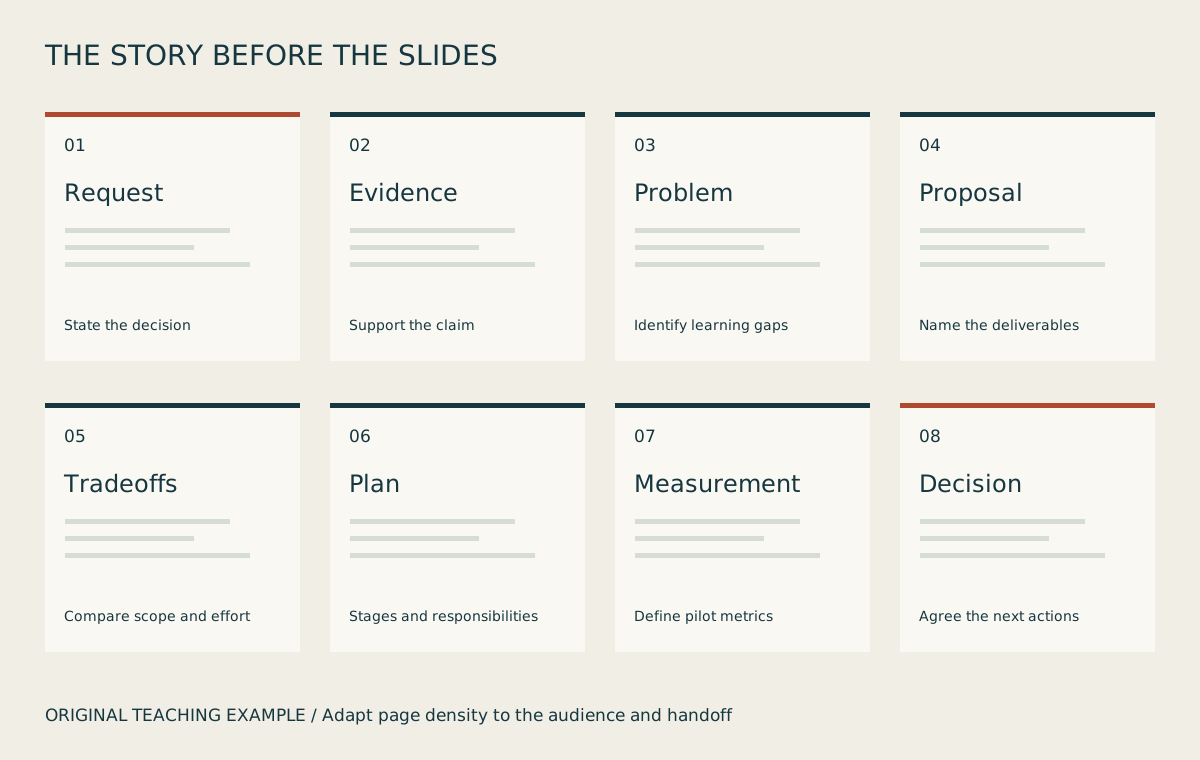
In our example, its proposed role is to turn a list of customer questions and training ideas into a slide-by-slide argument. Decide what each of the eight pages must answer before expanding the content. The first review can then focus on the claims and their sequence, giving later layout changes a purpose.
A useful first session
- State the audience, decision, and source facts. Label known information and proposed targets separately.
- Ask for the outline first. Look for missing evidence, an implementation condition, or an explicit request to the audience.
- Expand the approved outline. Give each card one main claim and move supporting detail into notes or an appendix.
- Export three representative pages and open them in the recipient's application before completing the deck.
Long source material can turn every page into a summary of everything. A practical correction is to write each heading as a complete claim: “Onboarding and setup account for two-thirds of the sample questions.” Keep the evidence that supports that claim on the page. Preserve other useful detail in the accompanying material.
Gamma's export guidance describes editable PPTX tables and embedded theme fonts, while noting that Google Slides handles embedded fonts differently and some effects change. Exports follow Present Mode; Free workspaces add branding. Gamma export help.
For a corporate template workflow, use a real file in the first trial. Gamma's import documentation says PowerPoint master layouts, custom template designs, and background images are not preserved. File import alone does not establish template fidelity. Gamma import guidance.
Open Gamma · Explore Gamma on ToolAI
Canva: work on content, images, and brand expression together
Canva's AI presentation feature generates a draft from a prompt and lets you continue editing it. Its product page also describes writing assistance, image generation, styles, and collaboration. Canva AI presentations.
Consider Canva when the same project includes slides, product imagery, course covers, and promotional material. The editorial reason is reuse: consistent names, images, and visual rules make a project easier to maintain. It is a sensible candidate for someone who wants to keep making deliberate decisions about cropping, alignment, spacing, and hierarchy.
Make three visual decisions early
Give each kind of page a job. A conclusion page should reveal the claim quickly. A data page should make the comparison legible. A process page should show the sequence. An action page should name a deliverable and a responsible person. Establish a small set of page styles around these jobs and repeat them throughout the deck.
Prepare an asset register. Collect the logos, screenshots, photographs, or illustrations you are allowed to use, with their sources. Add an image when it helps explain the content. A course interface can show what participants will receive; a process diagram can explain their learning path. Reduce decorative images when they compete with the main point.
Test the longest heading. Put the longest product name, heading, and caption into the design before duplicating it. For bilingual material, review both languages: the same box may produce very different line breaks. Settle the font and spacing with realistic content rather than a short placeholder.
Canva describes online presentation and download options in its presentation overview. If a recipient needs PowerPoint, use the download options available in your account to test a sample. Check whether the particular charts you use remain editable, whether media has a usable playback route, and how the file looks on the recipient's computer.
Keep a connection between the editable content and the final display. Store the source table beside each important chart and date any product screenshot. When a colleague updates next month's deck, they can locate the original information without reconstructing it from a visual.
Explore Canva presentations · View Canva plans
Beautiful.ai: maintain business decks around consistent layout rules
Beautiful.ai's published AI workflow starts with a prompt or source material, moves through an outline review and theme choices, and continues into slide generation and adjustment. Beautiful.ai AI presentations. Its Smart Slides adjust content within layout rules; recurring comparisons, timelines, and data pages are useful places to try them. Smart Slides.
Imagine a team producing a monthly business review with five familiar parts: what changed, why, the options, the resources, and the next actions. First define the content each part needs. Then use themes and layouts to keep the structure consistent. The second month's update reveals much of the value: the author replaces the evidence and conclusions while readers retain a familiar reading order.
Test the changes your team really makes
Choose three recurring pages: a six-item comparison, a three-stage timeline, and a data page with a long heading. Enter ordinary content, then add a longer title and another data item. Observe how the layout responds. The goal is to establish whether the tool accommodates your material.
Write down the review responsibilities as well. One person confirms facts, another maintains terminology, and someone owns the final export. Shared resources and version features help with coordination, but the deck still needs a named editor responsible for the finished handoff.
The plan comparison lists PDF and editable PowerPoint export and distinguishes individual and team features. Shared libraries, templates, and collaboration should be evaluated by having actual colleagues edit the same sample. Beautiful.ai plans.
If your work calls for free-form compositions, complex visual overlaps, or a strict corporate master, include those requirements early. Structured layouts can serve recurring business content well; a specific design requirement needs its own sample.
Open Beautiful.ai · Explore Beautiful.ai on ToolAI
Compare free access, subscriptions, and the whole cost of delivery
The plan comparison uses official pricing pages. Beautiful.ai amounts below are in USD. Check the purchasing region, taxes, billing period, and account-specific entitlements before subscribing.
| Tool | Starting point | Reasons to investigate an upgrade | Budget decision |
|---|---|---|---|
| Gamma | Free access for small projects; the public page lists ten slides per prompt | Removing branding, more usage, branding and sharing features | Complete the eight-slide exercise, check allowance and export, then compare current monthly and annual options |
| Canva | A free account and its available AI allowance | Required assets, AI usage, brand and team features | Check regional plans and existing team entitlements |
| Beautiful.ai Pro | A 14-day trial; US$14.50/month billed annually | Ongoing individual presentation work | US$174 annually; the site also lists a US$45 monthly Pro option for short-term comparison |
| Beautiful.ai Teams | US$40/month billed annually or US$50 billed monthly, including three users | Shared resources and collaboration | Compare the included workspace membership and verify extra-user terms at checkout |
Sources: Gamma pricing, Canva pricing, and Beautiful.ai pricing. Check Gamma and Canva's current paid amounts and dynamic allowances in the relevant regional or account view.
Track five parts of the work: preparing the material, approving the outline, editing pages, repairing exports, and a colleague's next update. For a recurring deck, the last two deserve their own time entries. A quick first generation may be followed by substantial maintenance if every data change requires rebuilding a chart.
For occasional work, compare free capabilities, a short monthly subscription, and tools already included in your organization. For monthly reporting, update the same sample twice. For teams, compare the actual number of editors and required collaboration features; keep workspace prices distinct from per-user prices.
Case study: turn a question list into an eight-slide project proposal
Our fictional software team wants to improve new-user training and request a four-week pilot. The starting material is an original, synthetic summary of 90 support questions, with no real customer records: onboarding 36, setup 24, reporting 18, and permissions 12.
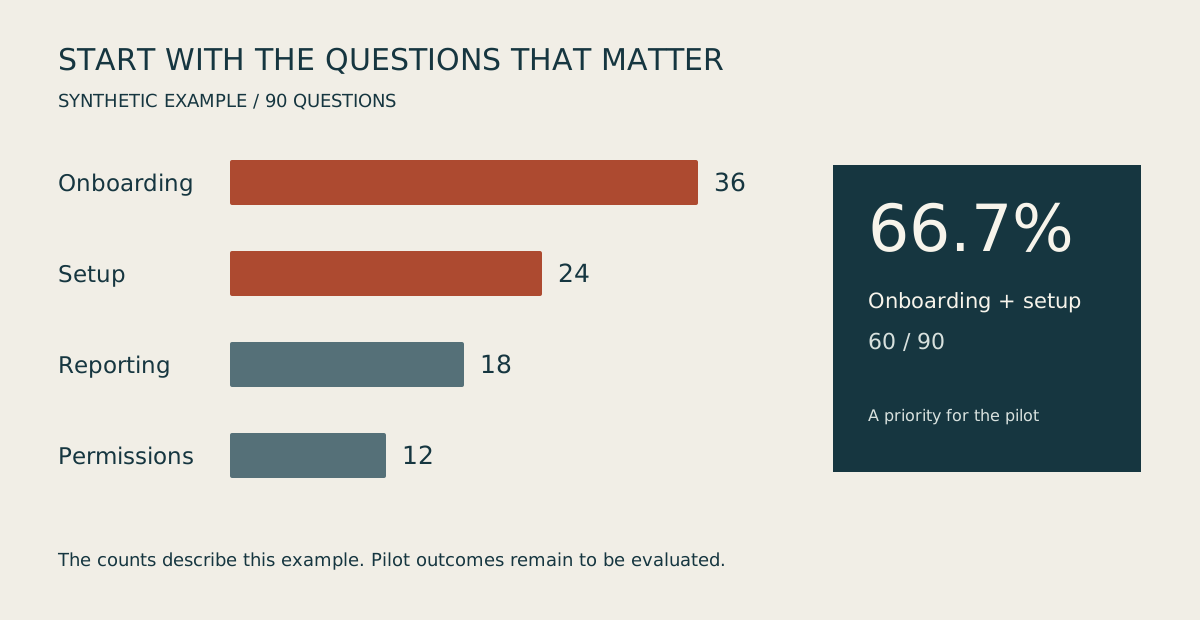
The sample supports prioritizing onboarding and setup content. Present the current distribution first, then make reducing support demand a pilot objective. This gives the team a basis for discussing course content, implementation and observation criteria.
Step 1. Name the decision
Start with a request: “Approve a four-week pilot involving product, training, and support, beginning with onboarding and setup material, with measurement agreed before launch.” Replace the roles and timing with your project's actual arrangements. In this exercise, those details remain proposals for discussion.
Step 2. Create an evidence table
Give each number five fields: value, unit, scope, source, and limitation. Ninety sample questions describe a sample distribution, not the entire customer base. In a real project, missing dates, deduplication rules, or classification definitions belong in the follow-up questions.
Step 3. Draft the eight-page storyboard
| Slide | Suggested heading | Purpose | Visual or content |
|---|---|---|---|
| 01 | Approve a four-week new-user training pilot | State today's decision | Request, participating roles, proposed timing |
| 02 | Onboarding and setup account for two-thirds of the sample | Explain the priority | A four-category bar chart with a synthetic-data label |
| 03 | Investigate two common learning gaps first | Connect categories to questions to investigate | Two learning paths, clearly labeled as hypotheses |
| 04 | Test short tutorials and a completion checklist | Describe the deliverables | Tutorial, practice task, and completion check |
| 05 | Compare a full rewrite with a focused pilot | Explain the tradeoff | Scope, staff effort, and feedback speed |
| 06 | Divide four weeks into preparation, trial, and review | Show the sequence | A timeline with stage deliverables |
| 07 | Assess task completion and participant feedback | Define the measurement discussion | Proposed metrics, collection method, and owner |
| 08 | Confirm participants, timing, and the review meeting | Ask for concrete actions | Three open decisions and their next owners |
Step 4. Give candidate tools the same outline
In Gamma, check that the eight-page argument survives and no unsupported numbers appear. In Canva, choose text, data, and process page styles that follow the same visual rules. In Beautiful.ai, inspect how a comparison and a timeline accommodate later changes.
Use identical material for each trial. Record the edits you need, keeping factual correctness, narrative structure, and visual preference as separate dimensions. A style you like does not establish that the generated claims are accurate.
Step 5. Keep the data and its explanation together
A horizontal bar chart suits this example because the audience needs to compare four categories with different label lengths. Label the bars 36, 24, 18, and 12. Add “Synthetic example; 90 questions” below the chart. Use the actual proportions, and keep the numbers that support the claim visible.
Step 6. Deliver for the intended setting
A reading link benefits from navigation and sources. A live presentation needs text that remains legible from the back of the room. A PowerPoint handoff needs editable elements. These versions can share the same evidence while using different levels of detail. Put fuller explanations in notes or attachments when the live slide needs to stay concise.
Three prompts to adapt
Insert facts, sources, and proposals you are authorized to use. Eight slides are simply the structure of this exercise; choose the length that serves the material in your own project.
Request an outline and evidence before pages
Design a slide-by-slide proposal outline for a software team's leaders.
Audience: product, training, and support leads.
Decision: whether to run a four-week pilot of new-user training content.
Plan eight slides, in English, with headings that state complete claims.

Known facts (synthetic teaching data):
90 questions: onboarding 36, setup 24, reporting 18, permissions 12.
These are fictional sample figures, not customer data.
No pilot outcome has been measured.
Open arrangements: participants, start date, content owners, and measurement.

Return: slide number | claim heading | evidence | suggested visual | speaker notes.
Keep units and scope with numbers; show formulas for percentages.
Mark missing facts “To confirm” and expected outcomes “Pilot objective”.
Do not invent market sizes, testimonials, staff names, or improvement percentages.
Finish with the additional material the team needs to supply.
Design a page around its message
Suggest two layouts for this slide using the approved content.
First restate the one idea the audience should remember.
Explain the position of the heading, evidence, image, caption, and open space.
For data comparisons, use a chart with accurate proportions, units, scope, and source.
For product interfaces, use the supplied real screenshot.
If no screenshot is available, label any conceptual visual as an illustration.
Keep the agreed fonts, colors, and terminology throughout the deck.
Rewrite or reflow long headings before reducing body text to an unreadable size.
List any additional assets needed and wait for me to supply them.
Review the handoff from the recipient's perspective
Review the content register and screenshots of this exported presentation.
Group findings under facts and numbers, reading order, visual clarity, and handoff.
Return: slide | observed issue | suggested change | item requiring human verification.
Check whether headings match the evidence and proposals are labeled as future plans.
Review units, percentages, sources, dates, and synthetic-data labels.
Check line breaks, clipped tables, image cropping, and caption legibility.
Editability, animation, links, and notes cannot be established from screenshots alone:
list these as manual checks where needed.
Finish with an actionable revision checklist.
Make images do a useful job
Identify whether an image provides explanation, evidence, comparison, or atmosphere. Use real interfaces for product screenshots, source values for charts, and explicit steps for process diagrams. A cover illustration can establish a visual theme; it should not be presented as evidence of product performance.
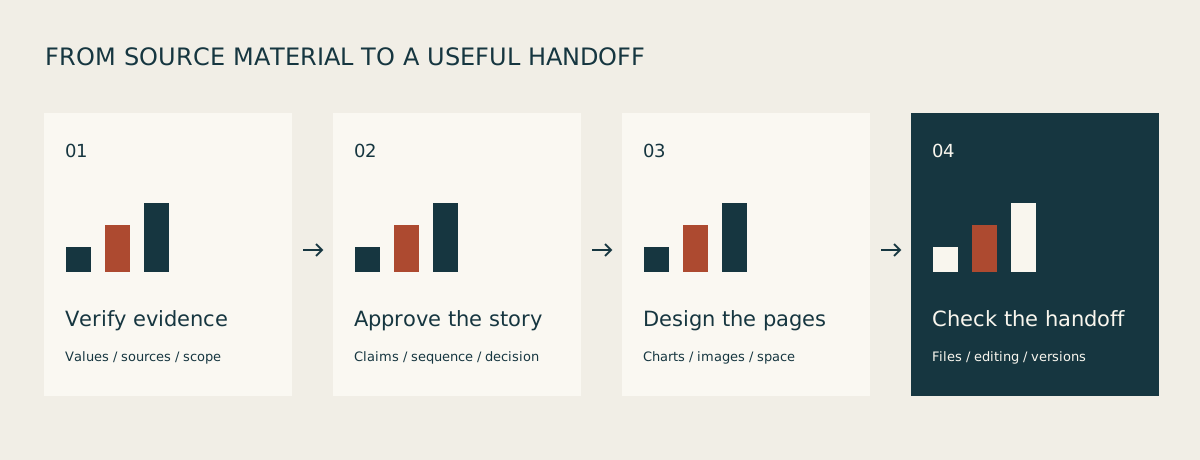
Design charts for reading. Category comparisons often start well with bars; time series may call for a line; a branching process needs explicit steps and connections. Put a short interpretation next to the chart. Add a second axis only when the relationship and units justify it.
Keep screenshots connected to the task. Show the relevant area with a useful caption. Use an approved demonstration account or sample data for public images. Date screenshots of changing products so a later editor knows what to revisit.
Use generated images for concepts and atmosphere. Specify a consistent material, lighting, composition, and palette across the deck. Label conceptual models clearly. The cover of this guide is an AI-generated editorial illustration; the charts and storyboard are original diagrams constructed from the teaching example.
Seven checks before sending the deck
| Check | What to do | Keep with the handoff |
|---|---|---|
| Facts and numbers | Reconcile key figures, totals, proportions, units, and dates with the source | Evidence register and calculation rules |
| Language and fonts | Open the longest heading on the target computer and review line breaks | Font notes or a practical fallback |
| Charts and tables | Change a value and a table cell to confirm maintainability | Original CSV or spreadsheet |
| Images and assets | Review resolution, cropping, captions, and source rights | Asset register |
| Animation and media | Test playback, audio, and links in the actual setting | Media or accessible backup links |
| Collaboration and access | Check the recipient's access and editing route | Project link and responsible editor |
| Offline files and versions | Open the PDF and PPTX; check pages, notes, and dates | Final files, editable source, and change log |
A useful handoff folder might contain presentation-final.pdf, an editable presentation-source.pptx when required, source-data.csv, asset-notes.md, and change-log.md. Use the project's naming convention. The important result is that a colleague can identify the approved version and locate the information that needs updating.
Frequently asked questions
Which one should I try if I only want one tool?
Start with Gamma for organizing material into a draft, Canva when visual assets are a recurring part of the job, or Beautiful.ai for repeated structured business presentations. Test the final handoff with the same sample pages before choosing a subscription.
Can a free plan support a real presentation?
Check the required pages, assets, generation allowance, branding, and output format. Complete the whole exercise, including download and recipient editing. Producing the first page establishes only the starting experience.
Does PPTX export preserve my existing master?
Import, export, and master inheritance are distinct capabilities. Use the real template in a trial and ask the recipient to edit the result. Check layouts, charts, and fonts, and keep a PDF as a reference for the intended appearance.
How can I reduce vague generated content?
State the audience, decision, known facts, unresolved questions, and final format. Approve the slide headings before generating the full pages. Give each page specific evidence, an example, or an actionable request.
Can the same deck work in English and Chinese?
Start from the same facts and adapt the headings and explanation to each audience. Verify terminology, units, dates, and names, then review line breaks in both versions. Keep slide numbers and source identifiers aligned for easier joint review.
How should I reassess the choice when a new tool appears?
Save the source brief, three sample pages, and delivery checklist. Repeat the comparison when a new tool addresses a real problem such as export repairs or collaboration. Substantially different selections will receive their own edition in the AI Presentations series.
Download the material and build your first draft
The edition kit contains bilingual storyboards, prompts, synthetic question data, a source register, and delivery checklists. Adapt them to your project and keep the synthetic-data label on the example.
- Download the complete edition kit ZIP
- Download the synthetic question data CSV
- Download English prompts
- Download the eight-slide storyboard
- Download the delivery checklist CSV
For preparing material from PDFs, spreadsheets, or meetings, continue with the Office & Documents collection. Good inputs and a maintainable final file make the presentation useful beyond its first showing.
Sources
- Gamma: plans and features
- Gamma: export workflow and limitations
- Gamma: imports and template limitations
- Canva: AI presentations
- Canva: presentation and download options
- Canva: regional plans
- Beautiful.ai: AI presentation workflow
- Beautiful.ai: Smart Slides
- Beautiful.ai: pricing, collaboration, and export