

Email and calendar
Ask for messages needing a reply and conflicting events first. Then choose one item to handle.
TOOL PROFILE TOOLAI
Start with one task. Let Muse work across your inbox, calendar and everyday apps.
 View full image
THE BIG PICTURE
Muse is Meta’s personal AI agent for tasks across the apps you connect: research, file organization, reply drafts and planning.
For a first try, choose something small and easy to review. Outline tomorrow’s schedule, compare three products, or turn notes into a checklist. Specify the deadline, the output and the actions that need your approval.
A CLOSER LOOK
Explore product screens and published examples. Open any image for a closer look.
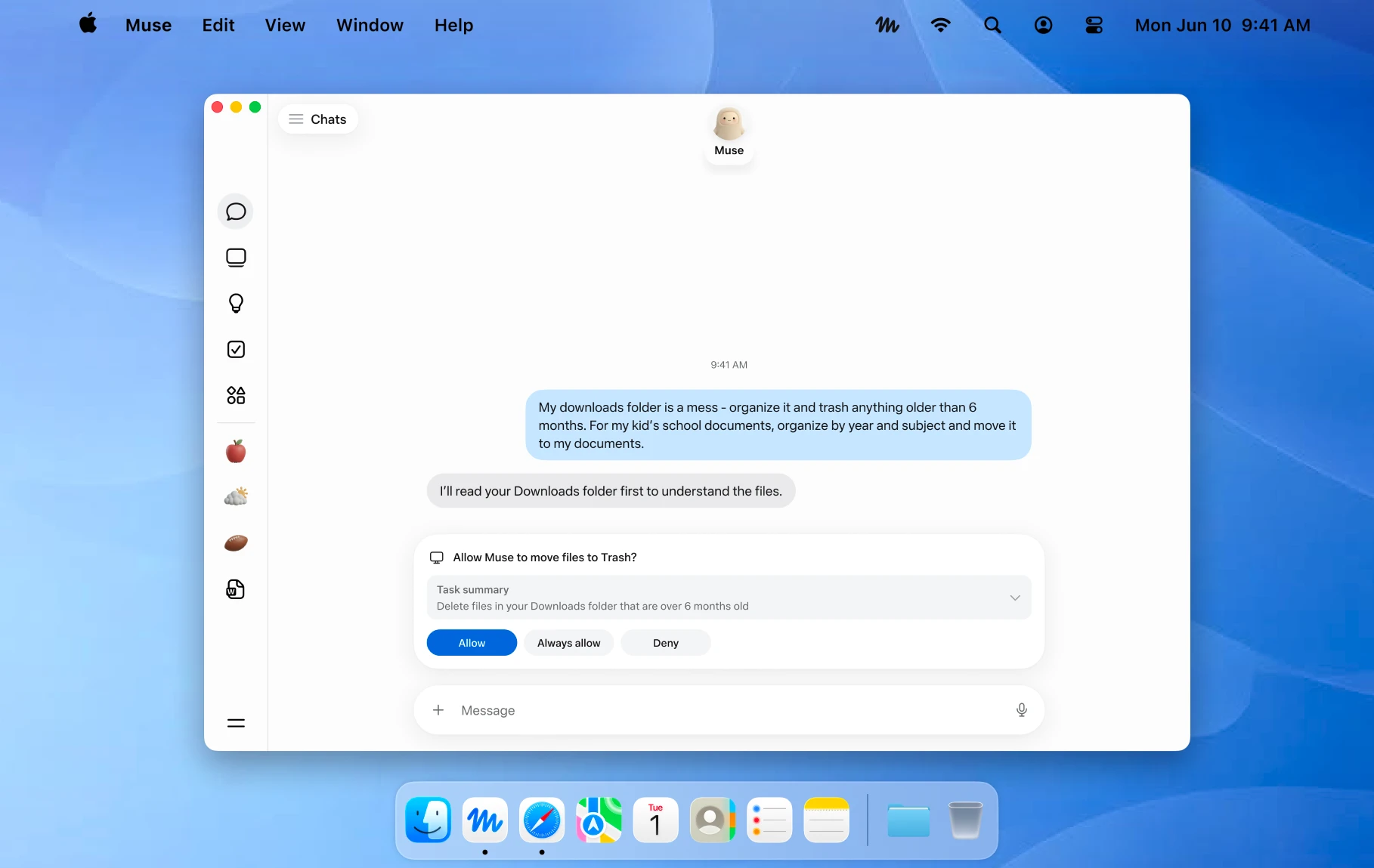
An official Mac example showing a file action awaiting approval. Image © Meta.
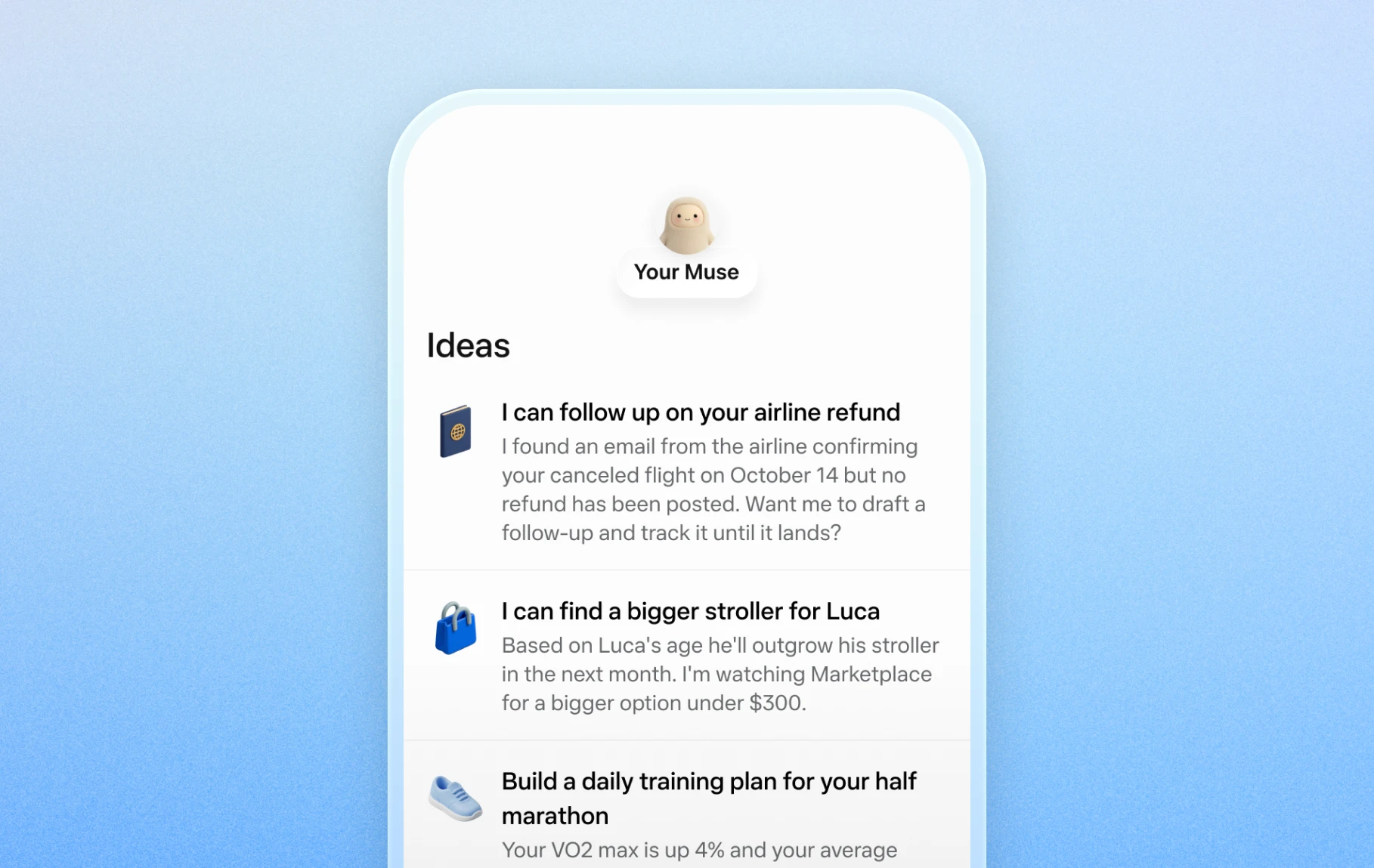
Official mobile examples of suggested everyday tasks. Image © Meta.

Official Artifacts examples, rather than ToolAI test results. Image © Meta.
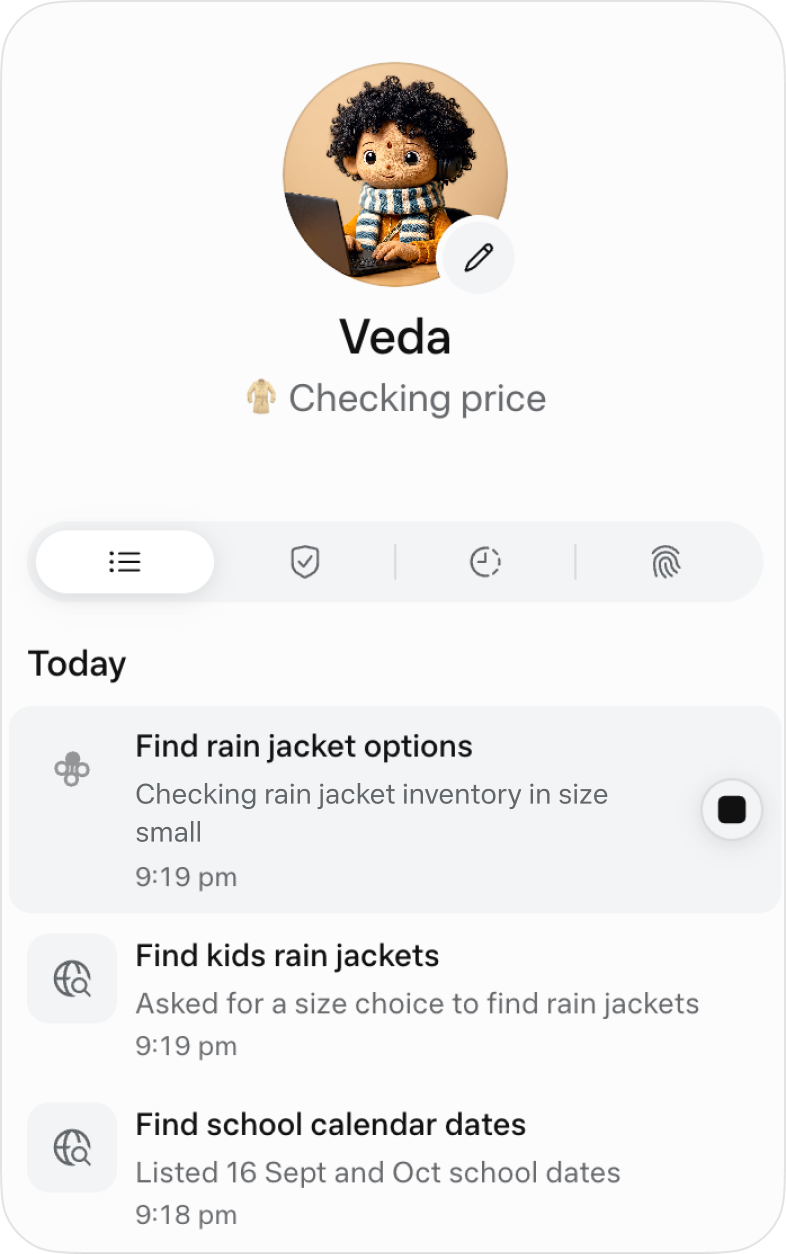
The official activity view for following ongoing work. Image © Meta.

The official Goals view collects longer-running tasks. Image © Meta.
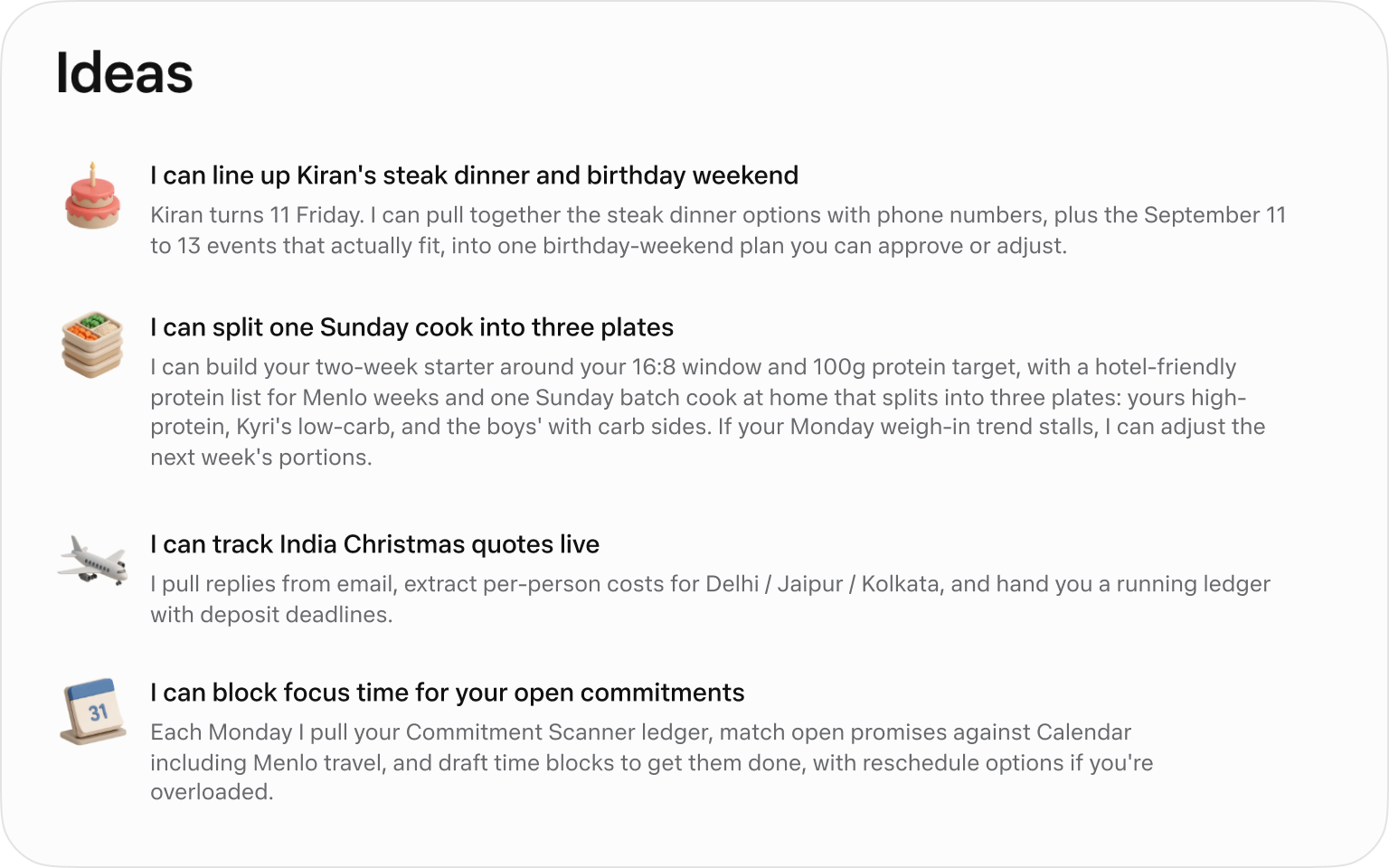
Official suggested tasks; what appears depends on your context. Image © Meta.
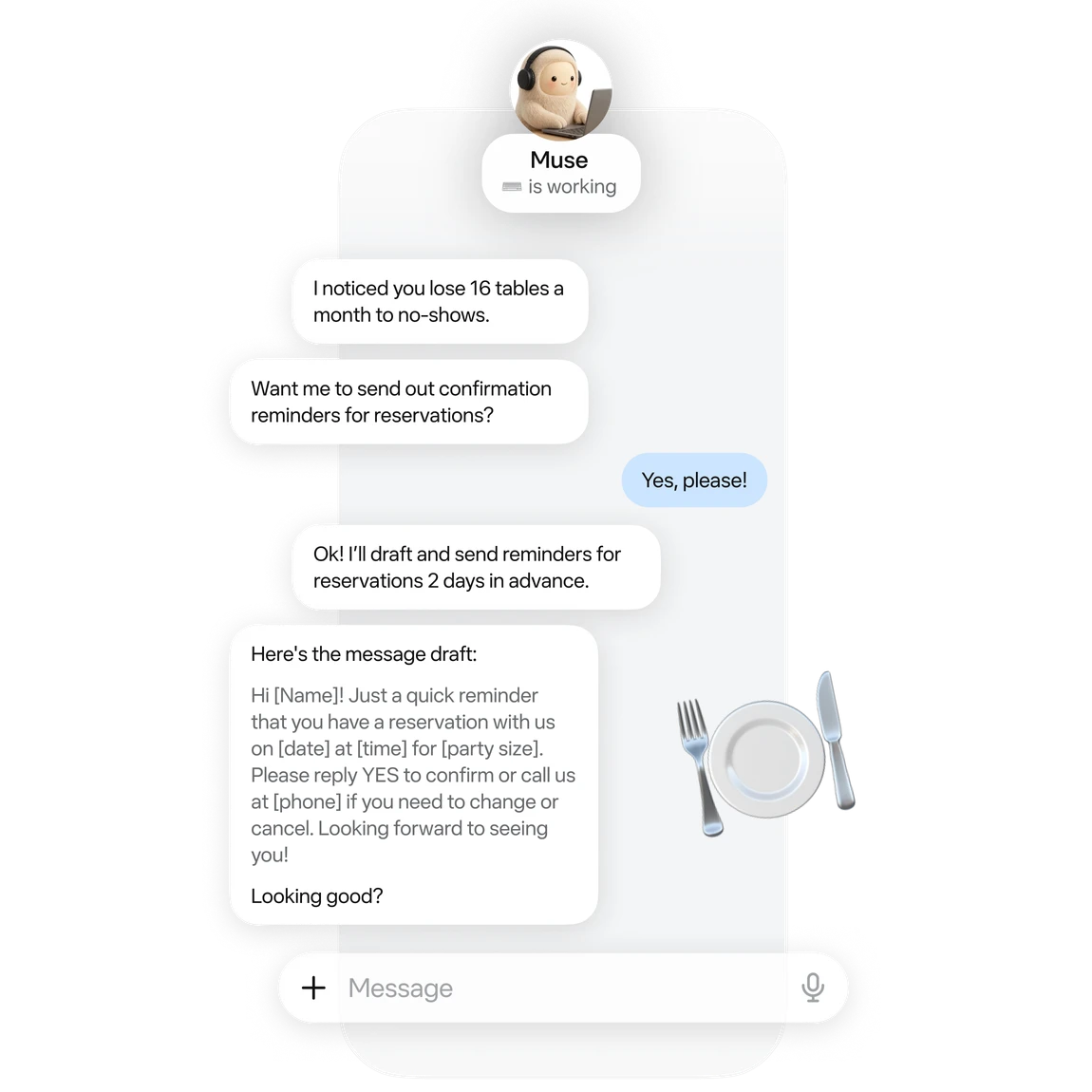
An official small-business example of drafting reservation reminders. Image © Meta.

Official business analysis artwork; its numbers are illustrative. Image © Meta.

Official connector artwork. Check settings for actual availability. Image © Meta.
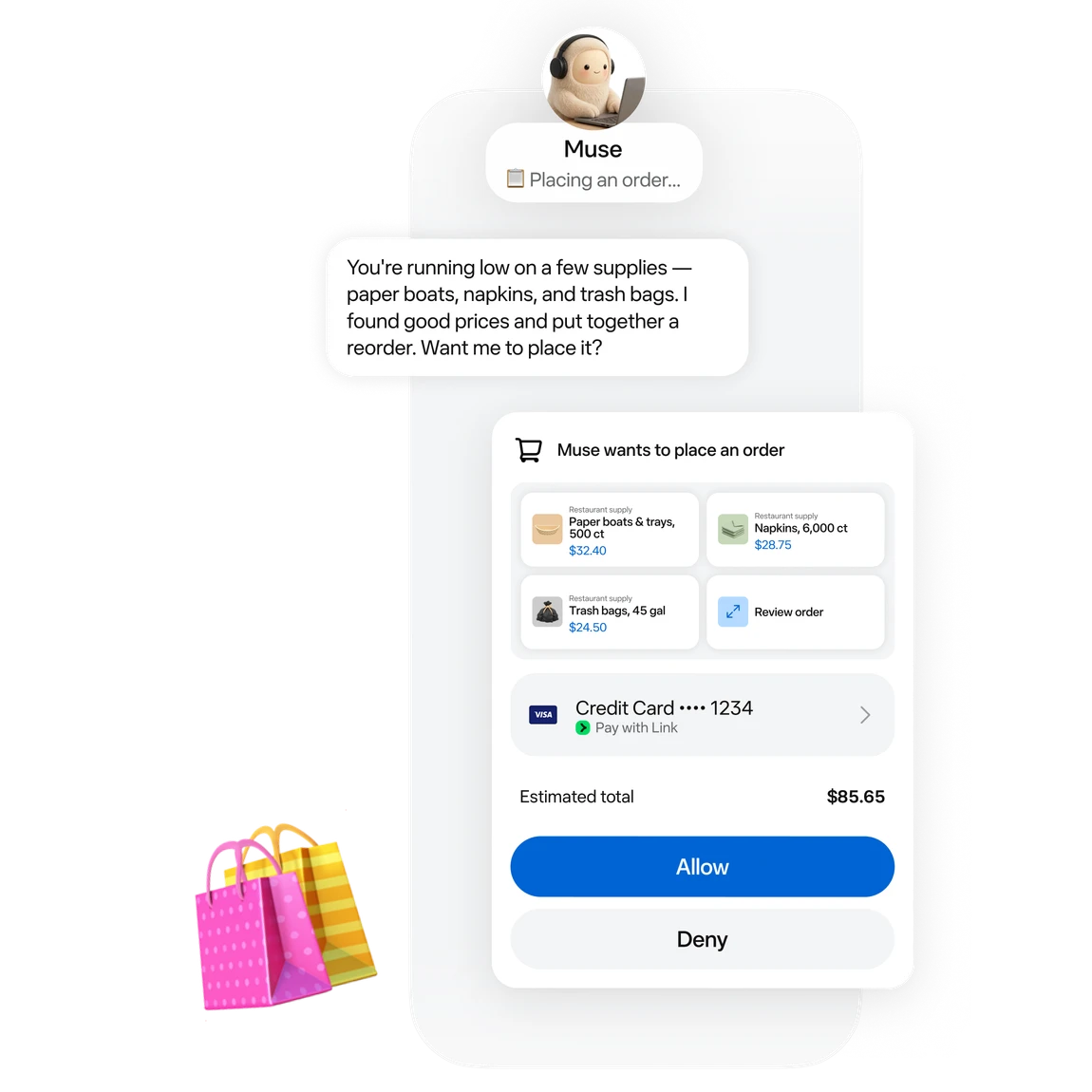
Official approval artwork for a proposed purchase. Image © Meta.
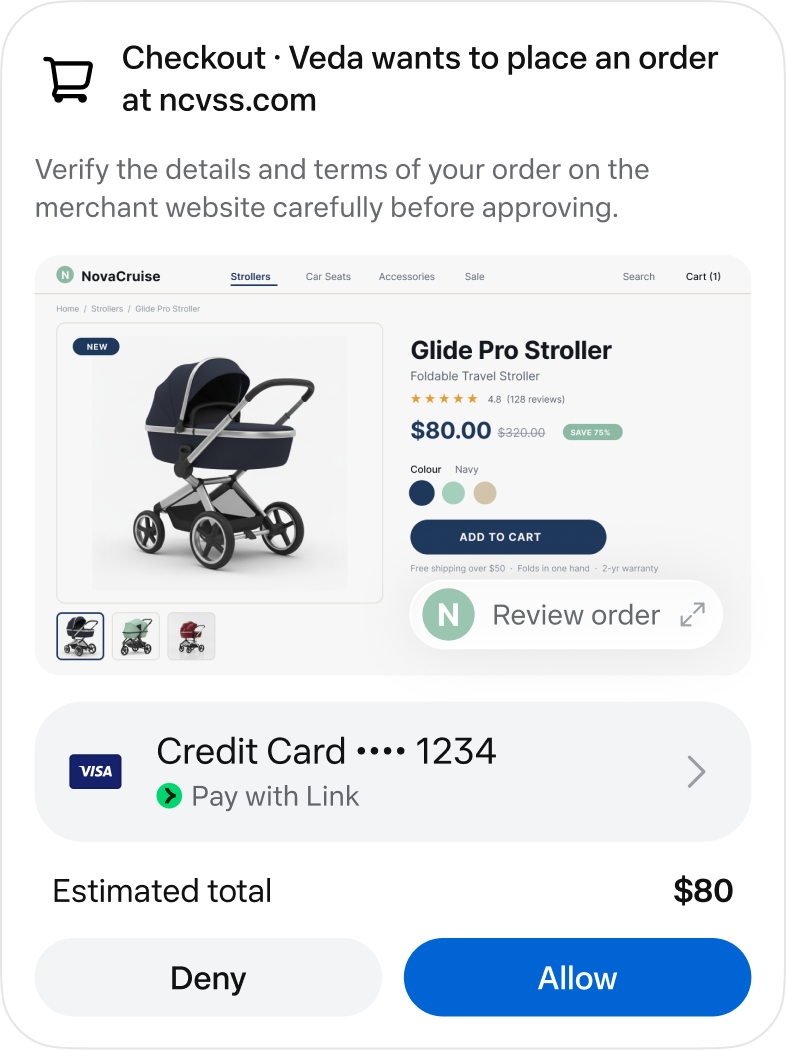
An official checkout approval screen. Image © Meta.
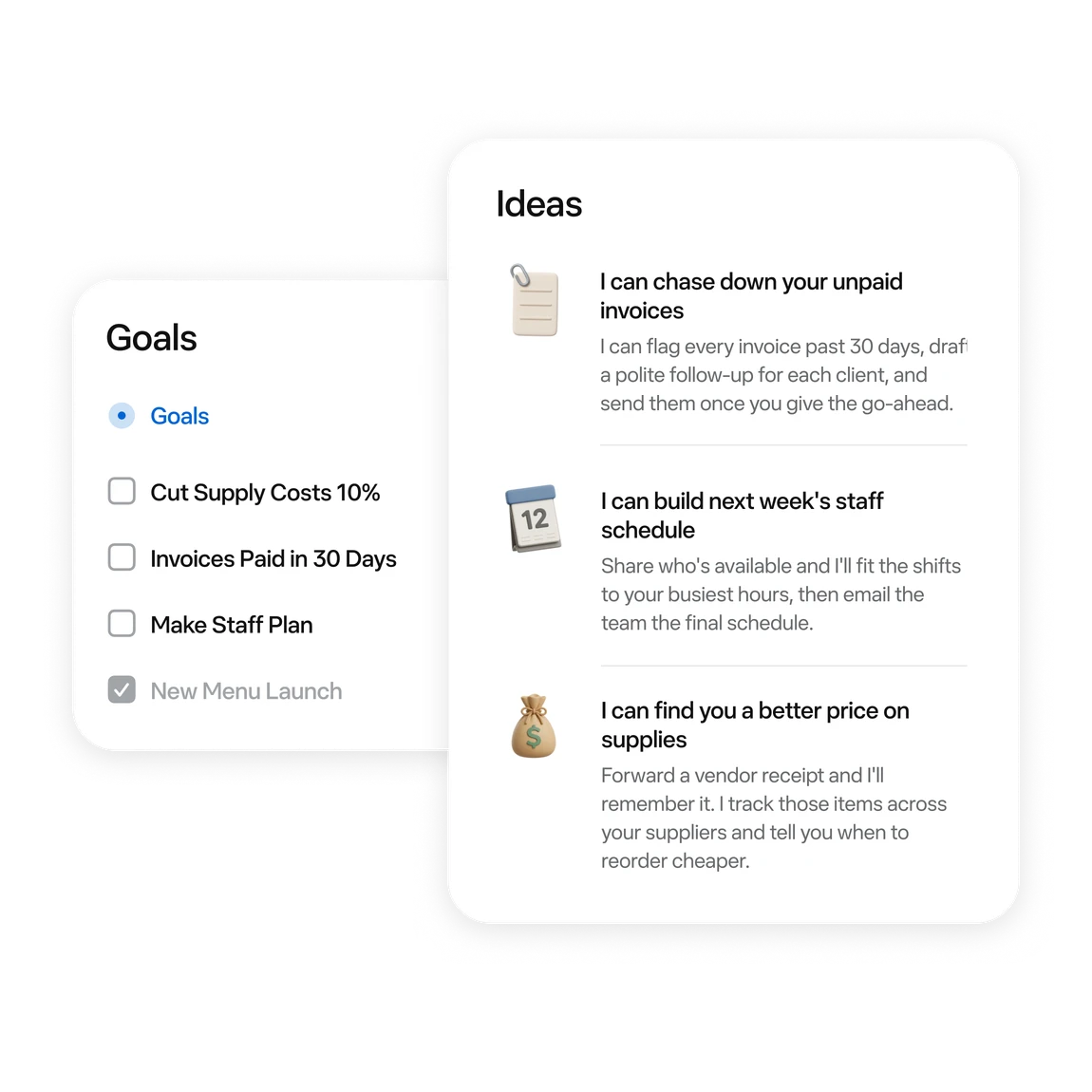
Official examples of business tasks and follow-up ideas. Image © Meta.
WHAT YOU CAN DO
Get to know the capabilities. Find your own way to use them.
Ask for messages needing a reply and conflicting events first. Then choose one item to handle.
Turn scattered material into a checklist or document. Review proposed moves or deletions first.
Follow work in activity and Goals. Use chat to add constraints or adjust a plan.
Try reservation reminders, a content schedule or an order review. Give it one defined task at a time.
Connect a work app when the task needs its data. Review the requested permissions.
Before sending, publishing or buying, review the recipient, content and amount in the approval card.
MADE FOR YOUR WORKFLOW
“Outline tomorrow’s schedule. Separate departure times, meeting prep and unfinished items. Leave unknown details blank.”
“Turn these meeting notes into an action table with owners, deadlines and source passages. Flag anything unspecified.”
“Use these orders to draft next week’s tasks: stock, customer follow-up and content. Draft only; do not publish.”
“Compare three candidates within my budget. Include tax, shipping, specifications and returns. Research only; do not order.”
YOUR FIRST STEPS
Start at muse.ai and check your region and account eligibility.
Follow the email or phone sign-in prompts and keep free access.
Specify the goal, timing and output. Add “draft only; do not send” when relevant.
When a task needs mail or files, check connectors and permissions in settings.
Check activity. Review sources, numbers and recipients in the result. Wait for a reset if the free allowance runs out.
TAKE A LOOK AROUND
Explore the tool's demo or video to see its interface and workflow.
PLAN YOUR NEXT STEP
Free allowance; optional paid upgrades
PLAN
Start with a small task. Wait for a reset if you reach the limit.
$0
Usage limits apply
PLAN
Explore higher allowances if needed. The free-use guides do not require an upgrade.
See current official plans
View plan on websitePrices, usage limits and terms can change. Confirm the latest details on the tool's official website before subscribing.
To stay on the free tier, wait for the allowance to refresh. Check your account for its balance and reset time.
Sources checked
A free allowance is available. You can wait for a reset; upgrading is optional.
The current published regions are the US and Canada, for adults aged 18+. Interface language does not establish eligibility.
No. These are Meta’s official interface and example images, retained with source attribution.
Choose something easy to review: a one-page task list, one reply draft, or three products to compare.
No. Agent usage and purchase costs are separate. Say “research only; do not buy” when that is your goal.
The official guide shows activity under the avatar and longer-term tasks in Goals. You can also request an update in chat.
KEEP EXPLORING
FROM THE COMMUNITY
Sign in to share your experience and help others find the right tool.
YOUR NEXT DISCOVERY
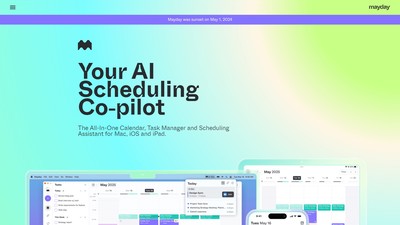
Mayday is an AI-assisted calendar that helps you take control of your day so that you can be more intentional with your time. Organize all of your calendars in one place, schedule your priorities at ideal times, and protect your day from too many meetings.

ChatGPT app designed exclusively for chatGPT superheroes like you, access advanced features such as prompt galleries, multitask with tabs and even save your most important messages. The interface looks so cool, you might never want to leave!

Posium is an AI-driven end-to-end testing platform that uses generative AI to create automated tests for web and mobile applications, helping developers and QA teams increase testing efficiency by 10x.

Claudia is an AI personal assistant engineered specifically for ADHD brains, transforming chaotic thoughts into organized action through voice input to help users regain control of their lives.
MAKE YOUR NEXT MOVE
Visit the official website to explore the latest features and get started.