TOOL PROFILE TOOLAI

Wondershare Filmora

AI-powered video editing software for Windows, macOS, iOS, iPadOS, and Android

filmora.wondershare.comPRODUCT PREVIEW
Product interface published on the official website. View full image
Product interface published on the official website.Images: 5

THE BIG PICTURE

About Wondershare Filmora

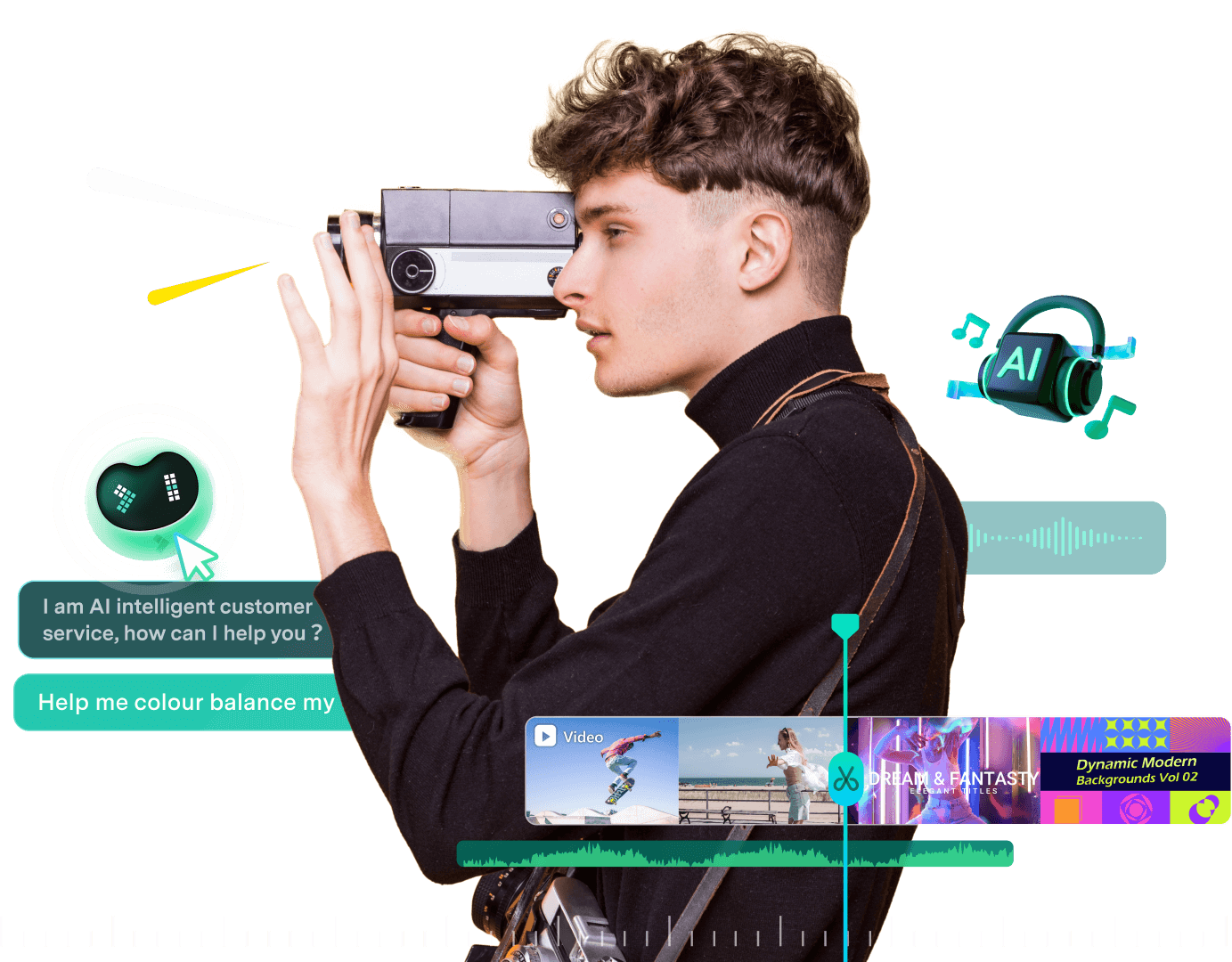
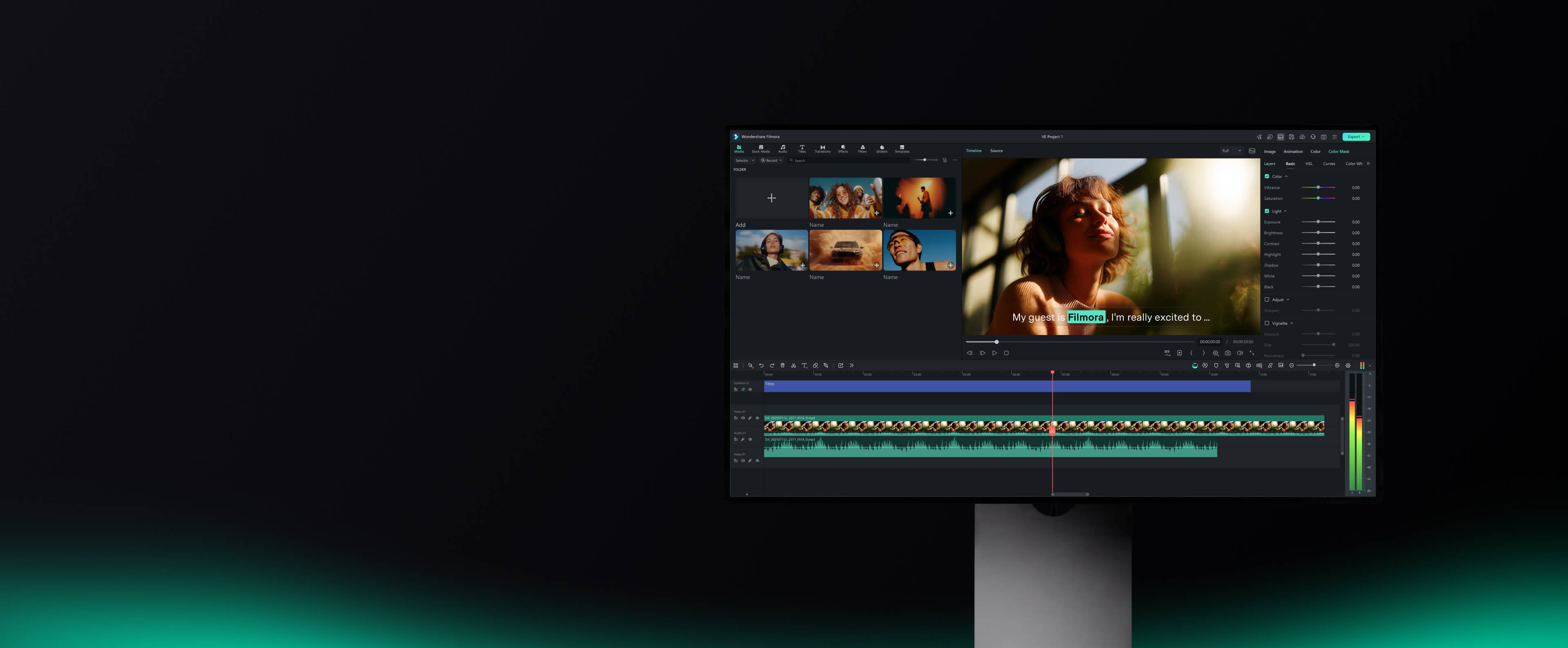
Filmora is Wondershare's video-editing application for assembling footage, shaping a story and preparing videos for publication. Its desktop version combines a multi-track timeline with color, sound, caption and recording tools. Filmora 16 also adds AI assistance for organizing media, adjusting footage and creating material that can be edited alongside imported clips. Templates and guided controls give beginners a starting point, while keyframes and other timeline controls support more detailed edits.

A typical project moves from importing and selecting clips to cutting, refining picture and audio, adding titles or effects, and exporting. AI features can help with repetitive stages such as transcription, finding useful footage and cleaning up sound. Users can review and revise those results in the same editing workspace before producing the final video.

Desktop editions are available for Windows and macOS, with companion apps for iOS, iPadOS and Android. Filmora says its cross-platform subscription lets one person use the same account across supported devices. The free edition can be downloaded to try the editor, but its exports carry a watermark. Removing that watermark requires a paid plan, and access to individual AI features or creative assets may have separate plan requirements.

WHAT YOU CAN DO

A toolkit worth exploring

Get to know the capabilities. Find your own way to use them.

AI Media Analysis

Analyzes video and image assets for people, scenes, locations, actions, and key information, then generates tags, descriptions, and edit-suggestion timestamps. It also helps organize footage with Smart Media Bin so users can narrow down useful media and find clips faster before editing begins.

Timeline Editing

A multi-track timeline for editing video, audio, subtitles, and effects with precision. It supports rough-cut tools such as removing pauses, editing from text, and trimming clips, plus advanced controls including keyframes, curves, dual timelines, and custom motion paths with the Pen Tool.

AI Video Generation and Extension

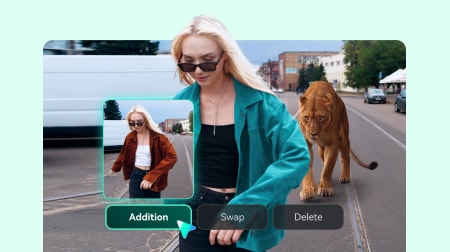
Generates video from text, images, or audio, and extends existing clips with AI Extend while keeping motion, background music, and ambient audio in sync. Generated results can be refined on the timeline. The pages also reference third-party models such as Veo 3.1 and Seedance 2 for AI video creation.

Screen and Multi-Source Recording

Records screen, camera, microphones, and system audio in the same session, with each supported source kept separately editable in Filmora. The pages describe it as suited to tutorials, demos, and gameplay, and note high-frame-rate game recording on Windows including supported 120 fps workflows.

Color Correction and Grading

Starts with fast color correction such as Auto Color, then allows refinement with 3D LUTs, AI Color Palette (color match from a reference image or video), and manual controls. Color Mask applies adjustments only where needed using shape, Pen, or AI masks, with HSL, curves, and color wheels.

Audio Tools and AI Audio Enhancement

Includes voiceover generation from text, speech clarity enhancement, background noise reduction, and mix balancing. Additional audio features include Silence Detection, Audio Ducking, Auto Synchronization, Auto Beat Sync, AI Audio Denoise, AI Vocal Remover, AI Voice Enhancer, and AI Audio Stretch.

Captions and Subtitle Workflow

Speech-to-text transcribes dialogue into editable subtitles, with suggested corrections and a dedicated Subtitle Track for organizing captions. Dynamic caption styles can be applied, and Smart Text Correction helps identify and correct supported speech-to-text errors.

Creative Assets and Templates

Provides access to a large library of creative assets including video templates, effects, titles, transitions, filters, stickers, music, and stock media. The official pages cite 2.9M+ creative assets, over 1.1 million royalty-free stock media assets, and over 10,000 customizable video templates.

Delivery and Connected Workflow

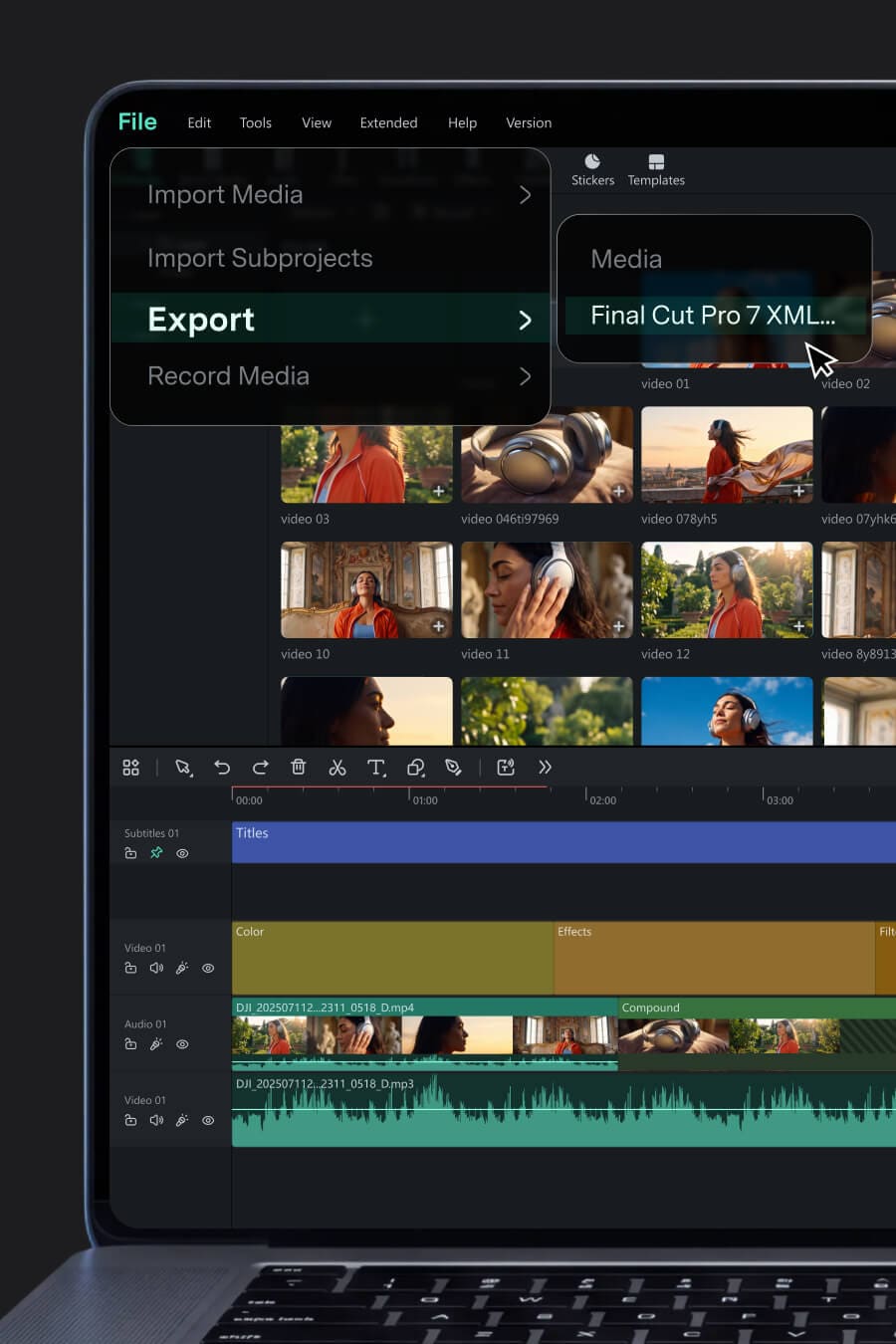
Supports reframing for different aspect ratios, translation for new audiences, and exporting multiple versions to multiple destinations from the same project. It can import supported XML timelines and export timelines as Final Cut Pro 7 XML for continued work in another editor, and offers Batch Export for queuing multiple video versions.

MADE FOR YOUR WORKFLOW

Where it fits into your day

USE CASE 01

YouTube and long-form content

Shape long recordings into focused videos, improve speech, add captions and B-roll, and keep recurring channel edits moving. The official pages list Silence Detection, Speech to Text, and Smart Short Clips as relevant tools for this workflow.

USE CASE 02

Tutorials and education

Turn lessons, software demonstrations, and course content into clear videos with narration, captions, callouts, and polished pacing. Screen Recording, Keyframing, and Speech to Text are cited for this use.

USE CASE 03

Gaming and tech content

Turn gameplay, commentary, reviews, and walkthroughs into highlights and polished videos ready to share, using Game Recording, Speed Ramping, and Dynamic Captions.

USE CASE 04

Business and client videos

Create product demos, explainers, ads, training videos, branded content, and client deliverables in one desktop workflow, using Color Grading, Animated Charts, and Batch Export.

USE CASE 05

Social, vlog, and travel content

Turn everyday footage, travel clips, and longer recordings into polished stories and short-form versions for different platforms, using Smart Short Clips, Auto Reframe, and Video Templates.

YOUR FIRST STEPS

From first click to first result

Try it on the official website
  1. Upload media

    Launch the video editing software and start a new project. Import media files from your computer, camera, phone, or other sources, or use built-in resources to begin editing.

  2. Edit your videos

    Cut, crop, and trim clips, then drag and drop elements, text, audio, effects, stickers, and AI captions onto the timeline to build the story.

  3. Refine picture and sound

    Use color correction and grading, audio tools such as denoise and ducking, and enhancement features to clean up and polish the edit.

  4. Add text and captions

    Add titles and on-screen text, generate captions from speech with speech-to-text, review suggested corrections, and manage subtitles on a dedicated subtitle track.

  5. Review and export

    Preview the video and finalize changes, then export the finished files, use batch export for multiple versions, or share directly to social media such as YouTube.

PLAN YOUR NEXT STEP

A plan for the way you work

Filmora offers a free download with watermarked exports. Paid plans remove the watermark, with cross-platform and team or business options also advertised.

Subscribe on the tool's website

Prices, usage limits and terms can change. Confirm the latest details on the tool's official website before subscribing.

Check Filmora's official pricing page for current prices, billing periods and included features.

Sources checked

A FEW MORE THINGS

Good questions. Useful answers.

More on the official website

What is Wondershare Filmora?

Filmora is Wondershare's video editor for turning recorded or generated material into finished videos. The desktop app includes a timeline, audio and color tools, captions, recording and creative assets. Version 16 also uses AI to assist with tasks such as reviewing footage and creating or improving media.

Is Filmora free to use?

You can download Filmora and try its editing workflow for free. Exported videos in the free edition display a watermark; a paid plan is needed to remove it. Check the plan details for any AI features or asset collections you intend to use, because access may differ.

Which operating systems does Filmora support?

Filmora has Windows and macOS desktop editions, plus apps for Android, iPhone and iPad. The official PC page lists 64-bit Windows 7, 8.1, 10 and 11. Before installing, check Filmora's current technical specifications for your device and operating-system version.

Does Filmora include AI video editing?

Yes. AI assistance covers several stages of a project, including examining footage, editing spoken content through text, creating captions, improving picture or voice, and generating or extending clips. These tools work alongside the timeline, where you can review their output and continue editing.

What video export formats does Filmora support?

The official PC page lists MP4, MOV, WebM, MKV, WMV and AVI among its supported video formats. Filmora also provides export choices intended for common publishing platforms. Consult the supported-format list for codec and operating-system restrictions before planning a delivery workflow.

Can I export videos directly to YouTube from Filmora?

Yes. Filmora includes a YouTube upload option and can prepare a video using settings intended for that platform. Its official FAQ also describes a Social Video Planner for scheduling publication. Check the current version's supported publishing options when connecting your account.

Can the resources of Filmora be used for commercial purposes?

Check the license of each resource. Filmora permits commercial use of assets carrying its commercial-use label, including qualifying AI Music. Its current FAQ places AI images, stickers, text-to-video output and AI sound effects in the non-commercial category because of uncertainty around training-material rights. Conventional assets also need the appropriate commercial-use designation. This is Filmora's stated policy; consult the current asset license for your project.

Can Filmora record my screen, webcam, microphone, and system audio?

Yes. The Windows edition supports recording the screen along with a webcam, microphone and system sound. Filmora's Multi-Source Recording can keep supported recordings separately editable, so you can adjust them independently when cutting the project.

FROM THE COMMUNITY

What has your experience been?

YOUR NEXT DISCOVERY

More tools to explore

Explore all tools

MAKE YOUR NEXT MOVE

Ready to explore Wondershare Filmora?

Visit the official website to explore the latest features and get started.

Visit official website
Wondershare Filmorafilmora.wondershare.com
Visit website

GALLERY

PASS IT ALONG

Share Wondershare Filmora