

Coding and Work modes
Coding mode preserves project, terminal, and code-management context, while Work mode emphasizes research, documents, presentations, data organization, websites, and office tasks.

TOOL PROFILE TOOLAI
An AI agent for coding, research, office work, and local projects
 View full image
THE BIG PICTURE
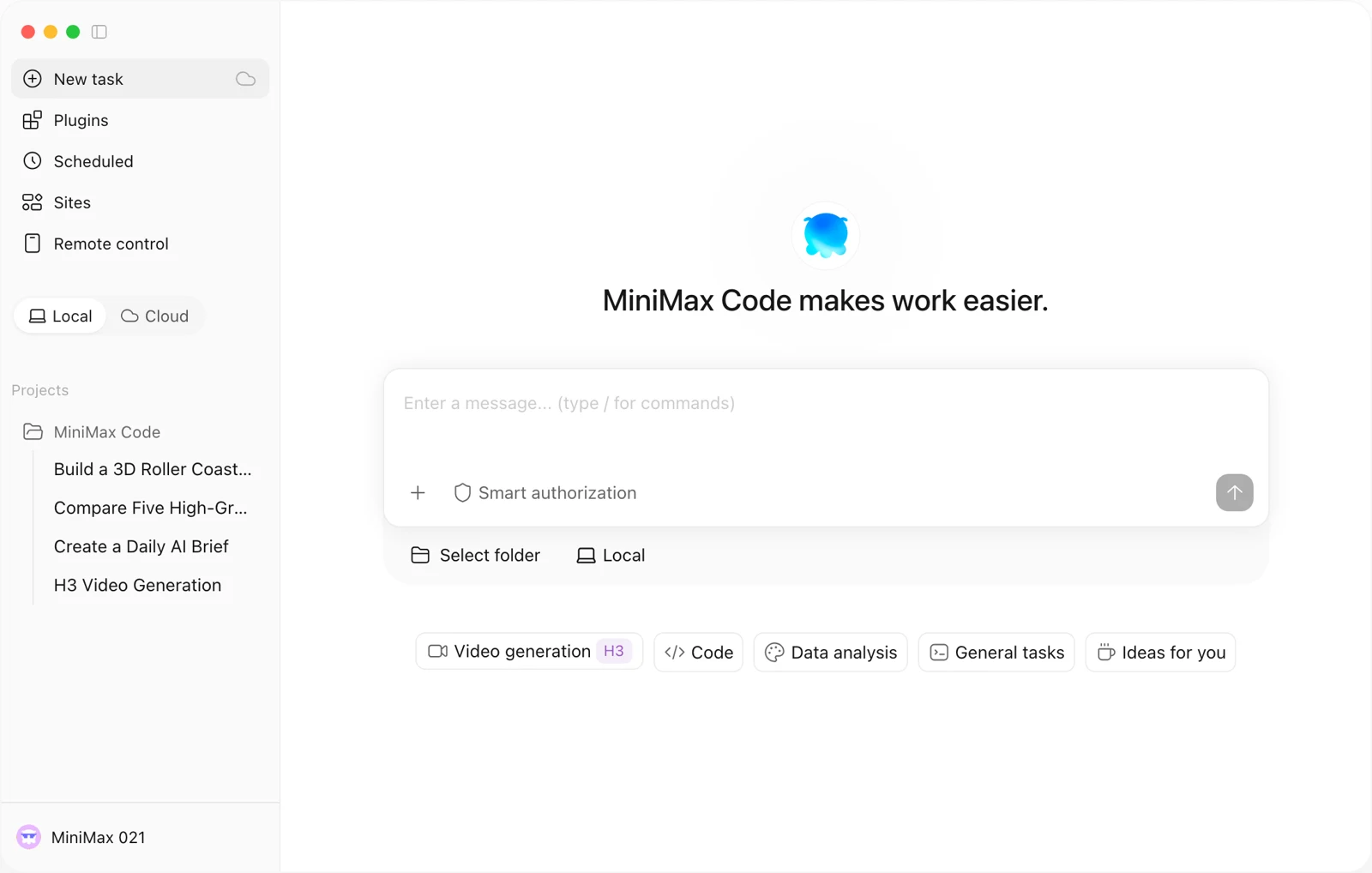
MiniMax Code is a desktop and terminal-based AI agent that connects to local files, project folders, tools, browsers, and cloud workflows. It supports both Coding and Work modes, helping users plan, write, debug, review, and deploy code alongside research, documents, presentations, data analysis, websites, and other deliverables.
A CLOSER LOOK
Explore product screens and published examples. Open any image for a closer look.
WHAT YOU CAN DO
Get to know the capabilities. Find your own way to use them.
Coding mode preserves project, terminal, and code-management context, while Work mode emphasizes research, documents, presentations, data organization, websites, and office tasks.
With permission, the desktop agent can read and modify files, run commands, use terminals, inspect differences, and synchronize confirmed changes back to a local directory.
The built-in browser can browse the web, organize information, and verify results, connecting research with actions and deliverable creation in one workflow.
MiniMax Code can work from images, video, and audio, extracting information and style to help create websites, content, presentations, and other outputs.
The open-source CLI supports interactive sessions, headless execution for scripts and CI, session continuation, planning, permissions, tests, and command-line project workflows.
Skills describe professional workflows and verification steps, while plugins connect external tools and services such as browsers, databases, Feishu, and other applications.
Desktop tasks can be handed to the cloud with context and required files, allowing progress checks and follow-up instructions across devices before downloading results.
Recurring instructions can run daily or weekly for reports, information organization, and periodic checks, with results shown in the corresponding conversation.
Create persistent small applications with a front end and Node backend inside the desktop app. Mini Apps can use plugins and expose services through MCP or an Agent API.
MADE FOR YOUR WORKFLOW
Open a project folder, ask MiniMax Code to find a failing test, modify the implementation, run relevant tests, and review the resulting changes before accepting them.
Provide a topic, document, or spreadsheet and ask Work mode to organize findings, analyze data, generate charts, and produce an editable presentation or HTML report.
Upload reference images, video, or audio, then ask MiniMax Code to extract the style and information, create the site structure, and refine selected areas.
YOUR FIRST STEPS
Download the macOS or Windows desktop app, or install the CLI through the supplied installer or npm instructions for a terminal workflow.
Sign in with a MiniMax account, or configure a compatible third-party or self-hosted provider using the CLI’s supported OpenAI- or Anthropic-compatible formats.
Describe a task on the home page, drag in reference files, or select a local project folder whose files and tools the agent should use.
State the expected output, allowed changes, constraints, and verification requirements; use Coding mode for development and Work mode for office or research tasks.
Inspect generated files, test results, permissions, and differences, then add requirements, refine the direction, or confirm synchronization back to the local project.
TAKE A LOOK AROUND
Explore the tool's demo or video to see its interface and workflow.
PLAN YOUR NEXT STEP
Daily login credits support free trials of coding and work tasks. Go, Explore and Build provide paid subscription options.
PLAN
Daily free credits support trying programming, office work, content creation, and other tasks.
Daily login access
PLAN
Paid options for ongoing MiniMax Code use beyond free login credits.
Subscription
Prices, usage limits and terms can change. Confirm the latest details on the tool's official website before subscribing.
No. It has Coding and Work modes. Work mode supports research, documents, presentations, data organization, websites, and other office tasks.
The desktop app is suited to local files, code projects, terminals, commands, the built-in browser, and plugins. It can also hand tasks to the cloud.
The web version starts cloud tasks without installation, including online research, content generation, and information organization.
Skills document a workflow and its checking steps. Plugins provide callable tools or external services, and some plugins include companion skills.
The CLI supports BYOK configuration for providers using OpenAI Completions, OpenAI Responses, or Anthropic Messages API formats.
Yes, scheduled tasks can run recurring work such as reports or periodic checks, but the desktop app must remain open and the computer must stay awake.
FROM THE COMMUNITY
Sign in to share your experience and help others find the right tool.
FEATURED BADGE

YOUR NEXT DISCOVERY

EzMail.AI is the AI-powered Gmail drafting tool that pre-fills personalized responses in your own writing style, enabling you to reply to emails 10X faster. It's a big time saver if you frequently write similar responses. It works on both mobile and desktop.

Streamline your job search process with JobHunnt. Manage your resume and job applications from our dashboard. Create the perfect resume and cover letter tailored to each job application in one click with the help of our AI-powered job assistant.

BlackBox AI is a AI powered coding assistant so you can code 10x faster. It enables you to turn any question into code and features like extract code from any video and code autocompletion.

AsInstant is an AI-powered business assistant that offers comprehensive support and assistance to businesses. AsInstant aims to help businesses grow, improve customer experiences, and increase operational efficiency through its intelligent capabilities.
MAKE YOUR NEXT MOVE
Visit the official website to explore the latest features and get started.