Looking for the AI Free Forever app?
The clearest verified starting point is the AIFreeForever website, which presents browser-based chat, image, writing, and audio tools. Open the site directly on your phone before looking for a download. A search result containing the same words does not, by itself, establish that a mobile application belongs to the website's operator.
This guide explains a mobile-browser workflow. It does not claim that a particular App Store or Google Play listing is official. If you prefer a native application, look for a store link published by the operator and compare the developer identity before installing it.
Begin with a small task
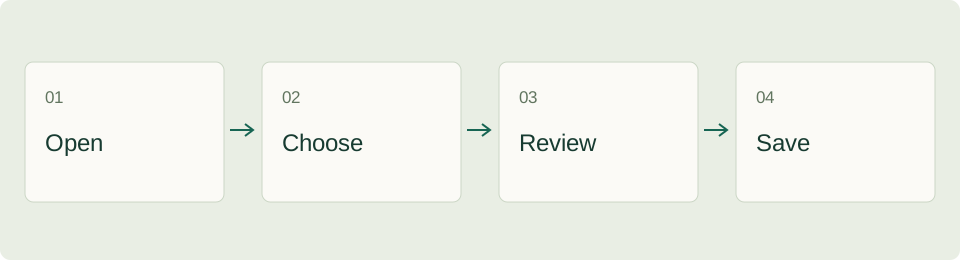
- Open the domain directly. Check that you reached
aifreeforever.comand identify the tool you need. - Choose one output. For a first attempt, ask for a short draft, a few title ideas, or a simple image concept rather than an entire campaign.
- Prepare a compact input. Explain the audience, purpose, and desired format. Include the information needed for that task without pasting an unrelated document.
- Read the result before saving it. Check names, dates, numbers, and unsupported claims. Revise the prompt when the output misses your goal.
- Save the useful output. Copy text into your notes or use the download control provided by that tool. Open the saved item to confirm that the transfer worked.
Three useful tasks for a phone screen
| Task | Input to prepare | What to check in the result |
|---|---|---|
| Draft a short message | Recipient, purpose, and the facts you want included | Tone, names, and whether it invents a commitment |
| Explore an image idea | Subject, intended use, and one visual direction | Whether the concept fits your actual project |
| Prepare a voiceover script | Audience, sequence of actions, and length target | Whether it sounds natural when read aloud |
For example, a message prompt could be: “Draft a polite reply to a customer asking about a delivery delay. Say that I am checking the shipment and will send an update tomorrow. Keep it under 80 words. Do not invent a refund policy or a delivery date.”
That is an original prompt example, not a verified output from the service. The key is to provide the facts the tool may use and make the missing information explicit. On a small screen, short structured requests are also easier to revise than a long unbroken paragraph.
Website shortcut versus native app
A bookmark opens a webpage. A home-screen shortcut or an installed web app can provide a more direct entry point, depending on the browser and what the site supports. These options are not the same as a native app distributed by a mobile store.
Google explains the available workflows in its Chrome web-app help. Follow the instructions for your own device. If an install or home-screen option is not offered, a normal bookmark is still a workable way to return to the site. Do not assume that adding a shortcut makes generation available offline.
Give the shortcut a recognizable name and open it once after creating it. This catches a common mistake: saving an advertisement, an intermediate page, or an unrelated result instead of the tool you intended to use.
What “free” tells you—and what to check
The provider markets AIFreeForever as a free collection of tools. Treat that as the operator's description of the service, not a guarantee that every feature, external link, model choice, or future policy will always have the same conditions.
Before an important task, inspect the specific tool page for requirements, limits, and destination links. If a button sends you to another domain, check what service you have reached before uploading a file or entering account information. A short trial with non-sensitive material helps you understand the interface and saving behavior.
Our main AIFreeForever guide covers broader creative uses. This page is focused on reaching the service and completing a manageable task on a phone, so the two pages serve different questions.
Troubleshooting a mobile session
| Problem | First step |
|---|---|
| The keyboard hides the controls | Dismiss it and inspect the page before submitting again |
| The page seems stuck | Save your prompt, then check the connection and reload once |
| You cannot find a downloaded file | Open the browser's downloads area and confirm the filename |
| A result is difficult to copy | Select a smaller text section or use the tool's copy control if available |
| A link opens an unexpected website | Recheck the destination and return to the original tool page |
If a generated result contains an error, distinguish that from an interface failure. A factual mistake needs source checking and revision; repeatedly reloading the page does not establish that the next answer will be correct. Keep the original prompt in your notes so you can describe the problem clearly.
Keep a simple project record
Save the prompt, the date, the tool page, and the edited output together. For image or audio work, include the final downloaded file and a short note about what you changed afterward. This record helps when you move from your phone to a desktop or share the project with someone else.
When your task becomes more specialized, choose the next step deliberately. The TTSMaker guide covers voiceover preparation, while the NoteGPT guide explains how to check a summary against a source video.
Frequently asked questions
Do I need an APK to try AIFreeForever?
The verified route described here uses the website in a browser. This guide does not require an APK and does not endorse an unverified download.
Will a shortcut work without an internet connection?
Do not assume so. A shortcut changes how you open a site; the tool's actual features determine what can work offline.
Where can I find the ToolAI listing?
Open the AIFreeForever tool profile for its directory description and related resources.
ToolAI Editorial · AI-assisted writing, checked against the linked sources. Workflow examples and diagrams are original editorial suggestions; no hands-on performance benchmark is claimed.