
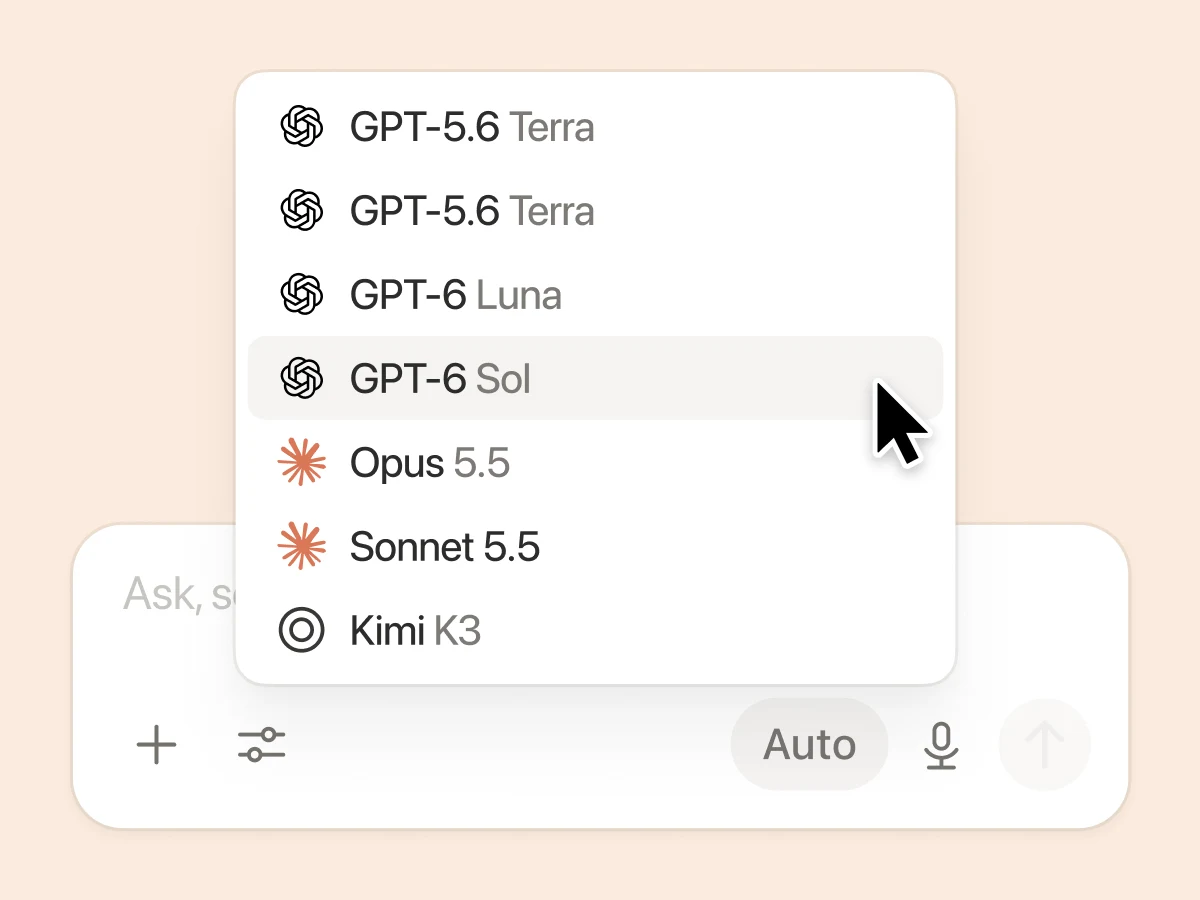
Notion is now an entry point for using Opus 5.5 alongside project plans, requirements and working documents. If your team already uses Notion, a useful first task is to ask the model to work with a small, well-defined set of material you already maintain.
Notion announced Opus 5.5 in its October 13 release of Notion 3.8. The official model-picker illustration includes it. Start at the Notion AI website and sign in on the web or through the desktop app. You can write your requests in your preferred language; model names usually remain in English.
Check whether your workspace can select the model
Full Notion AI access is available on Business and Enterprise. Free and Plus offer limited trial responses, which should not be treated as dependable access to a particular premium model. Business trials may also lack the model picker. Check the current workspace plan, then inspect the available models. A paid account alone does not tell you which models are enabled. Notion’s AI help page explains these distinctions.
Switch from Auto to Opus 5.5
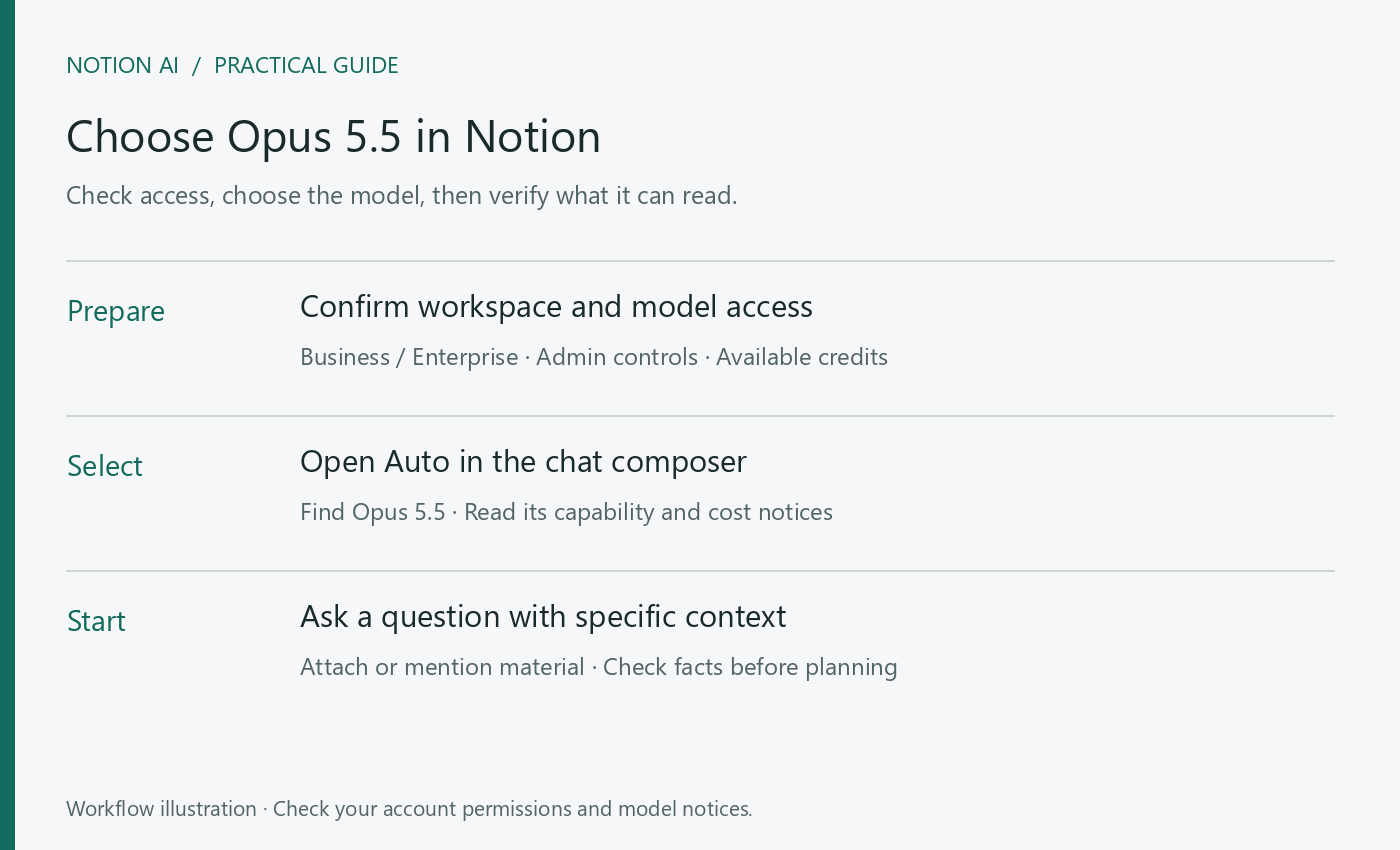
- Open Notion AI and start a new conversation.
- Select Auto beside the message composer.
- Find Opus 5.5 and read its capability and pricing notices. If your interface labels it as a beta, treat it accordingly.
- Confirm that the selected model name appears before sending your task. Leaving the selector on Auto does not guarantee that every reply will use Opus 5.5.
If the model is missing, ask the workspace administrator to inspect the model controls under Settings → Notion AI → Usage, along with workspace and member credits. Labels may move between interface versions. The model-management guide describes the admin controls.
First, verify what the model has read
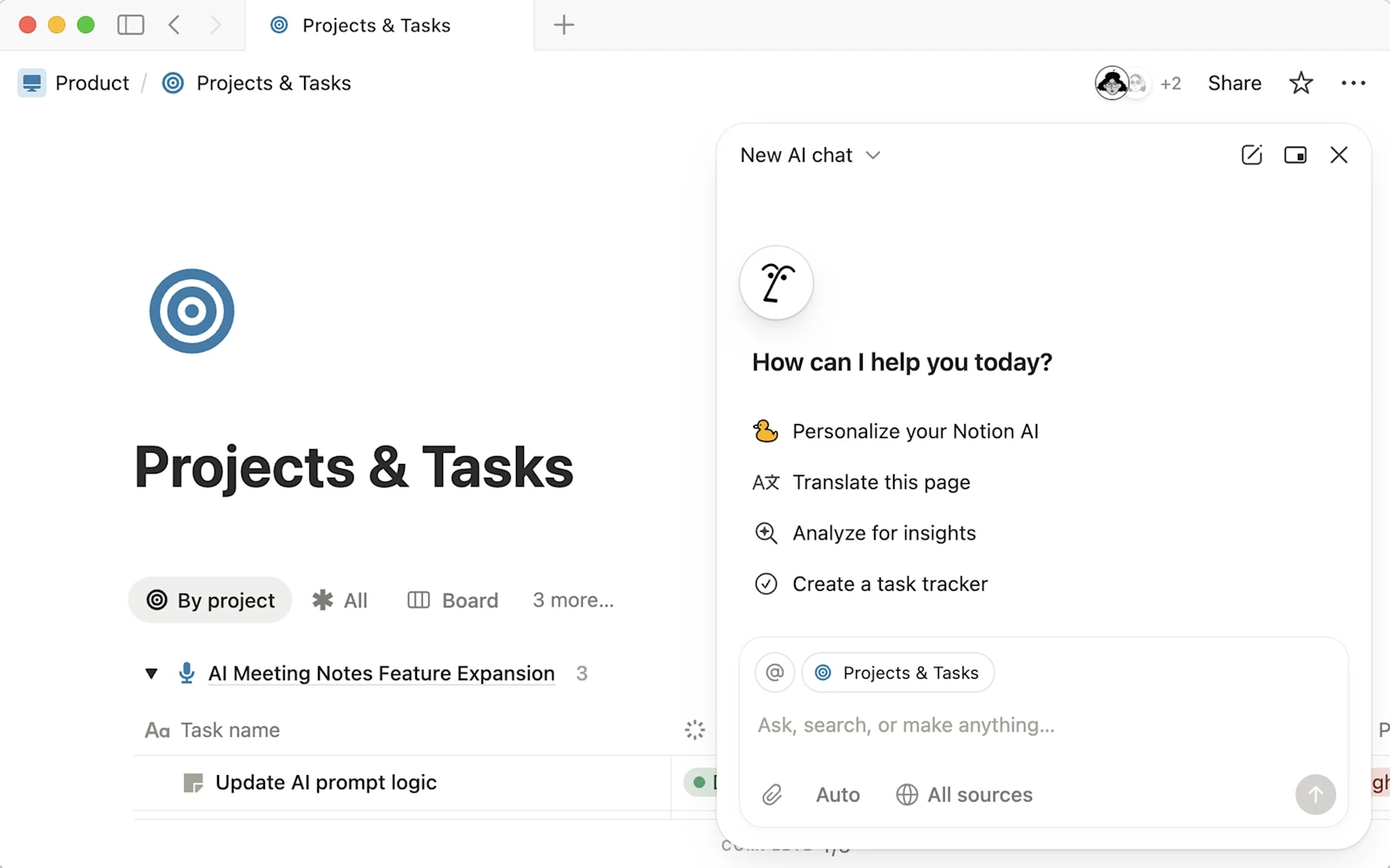
Create a short project-background page with the target users, existing features, the problem you are investigating and the decision you need to make. Mention that page in chat and ask the model to repeat a few facts you can check. Continue to analysis only after those facts match.
Read the Project Background page I have specified.
First list the target users, existing features and current constraints, with supporting references.
If you cannot access the page, say so rather than guessing.
After confirming the material, propose three improvements and explain which user problem each one addresses.
Notion’s Agent guide cautions that some model choices may use only web information and may not access workspace or connected-app content. Selecting a model is only one step: verify which context it can actually use. If necessary, upload or paste material you are permitted to share.
Complete one small piece of work
Start with one feedback page, a feature review or a release plan. Ask for the problem, evidence, recommendation and open questions. Then choose one recommendation to develop further. This makes the quality easier to judge and helps you discover prompts that work for your project.
For use inside Notion, check permissions and billing in your Notion workspace. This subscription should not be treated as Claude Code sign-in access or a general-purpose API key. Before paying, confirm that your account exposes the model and payment options you need.
Read next: Notion AI Pricing Explained: Seats, Allowances and Premium Model Credits · Write a Product Plan with Notion AI: From Code Context to Acceptance Criteria