TOOL PROFILE TOOLAI

TeraBox AI

An all-in-one AI workspace for presentations, writing, images, video, transcription, and PDF conversion.

terabox.comPRODUCT PREVIEW
Illustration published on the official product website; see the source page for its context. View full image
Illustration published on the official product website; see the source page for its context.Images: 4

THE BIG PICTURE

About TeraBox AI

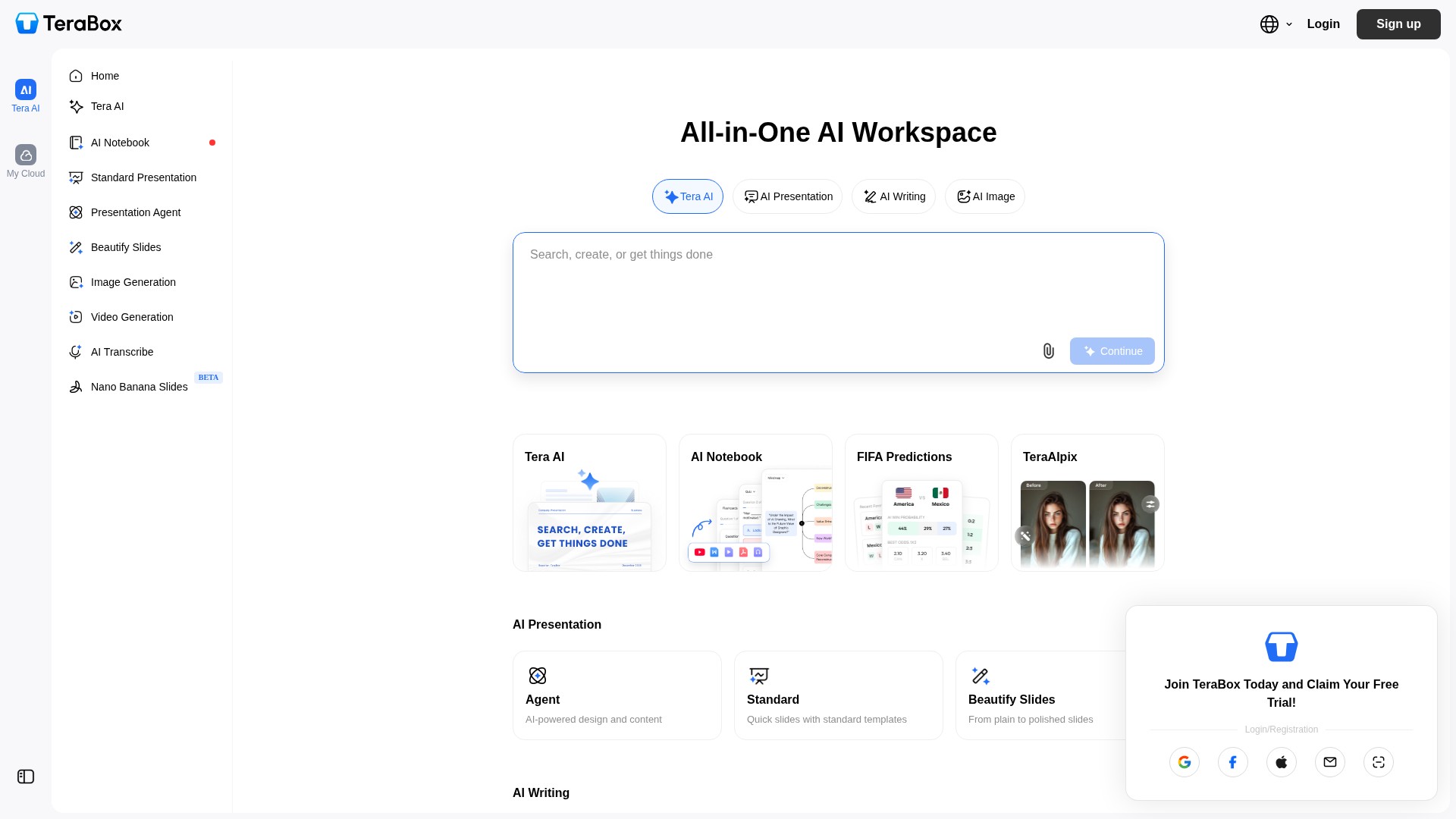
TeraBox AI brings presentation creation, writing, image and video tools, transcription, and document conversion into a browser-based workspace. You can upload local files or import material from cloud storage, then choose a tool for the task. The presentation options include template-based slides, an AI presentation agent, and a slide-beautification tool. Nano Banana Slides is also listed as a beta feature.

The writing area includes research, essay-writing and paraphrasing tools. Image generation and image-to-video options sit alongside conversions such as PDF to Word, PowerPoint or Excel, Word to PDF, and JPG to PDF. The transcription workspace offers live recording as well as audio and video import, with real-time text and AI insights. These options make the workspace relevant to preparing presentations, repurposing recordings and handling everyday document tasks.


WHAT YOU CAN DO

A toolkit worth exploring

Get to know the capabilities. Find your own way to use them.

AI Presentation tools

The workspace groups several presentation options: Standard, described as quick slides with standard templates; Presentation Agent, described as AI-powered design and content; and Beautify Slides, described as turning plain slides into polished ones.

AI Writing and research

Writing tools include Deep Research, described as professional and accurate; AI Essay Writer, described as writing a humanized and difficult-to-detect essay; and Smart Paraphrase, described as improving expression accuracy.

Image and video generation

Image Generation is described as instant variation of your creation, while Video Generation is described as going from image to motion effortlessly.

AI Transcribe

The transcription page offers a Start Recording action and states that recording is real-time with real-time text and one-click AI insights. It also accepts drag-and-drop audio and video files.

Broad audio and video format support

The transcription page lists supported formats as MP3, AAC, MP4, MOV, WAV, and 52+ other formats, and provides Local Import and Netdisk Import options for bringing files in.

PDF and document conversion

Format conversion tools listed include PDF to Word for editing PDF text instantly, PDF to PPT for turning PDFs into slides, PDF to Excel for turning PDFs into spreadsheets, Word to PDF for saving Word docs as PDFs, JPG to PDF for converting images to PDFs, and a More PDF Tools entry.

Cloud import and upload

The main page shows Upload File and Cloud Import actions, and the transcription page offers Netdisk Import, indicating that files can be brought in from local storage or from cloud storage. The pages do not specify which file types each import path accepts for each tool.

AI Notebook and Nano Banana Slides

AI Notebook and Nano Banana Slides are listed in the workspace. Nano Banana Slides is marked beta.

MADE FOR YOUR WORKFLOW

Where it fits into your day

USE CASE 01

Preparing a slide deck quickly

A user can choose Standard for quick slides with standard templates, or use Presentation Agent for AI-powered design and content, then apply Beautify Slides to turn plain slides into polished ones.

USE CASE 02

Drafting and refining written content

The writing tools can help with research through Deep Research, essay drafting through AI Essay Writer, and improving expression accuracy through Smart Paraphrase.

USE CASE 03

Generating visual and motion content

Image Generation can create variations of a creation, and Video Generation can turn an image into motion, according to the product descriptions.

USE CASE 04

Transcribing recordings and media files

A user can start a real-time recording to get real-time text and one-click AI insights, or drag and drop audio or video files in supported formats such as MP3, AAC, MP4, MOV, and WAV for transcription.

USE CASE 05

Converting documents between formats

The format conversion tools can help turn PDFs into Word documents, slides, or spreadsheets, save Word documents as PDFs, and convert images to PDFs.

YOUR FIRST STEPS

From first click to first result

Try it on the official website
  1. Open the TeraBox AI workspace

    Go to the TeraBox AI page in a browser and log in or register using the Login/Registration option shown on the page.

  2. Choose a tool from the workspace

    Select from the listed areas such as AI Presentation, AI Writing, AI Image, Video Generation, AI Transcribe, AI Notebook, or the format conversion tools.

  3. Provide input for the selected tool

    Depending on the tool, enter text for writing or research, use Upload File or Cloud Import on the main page, or on the transcription page drag and drop audio or video files or use Local Import or Netdisk Import.

  4. Start recording or processing

    For transcription, use Start Recording for real-time recording and real-time text, or import an existing audio or video file. For other tools, follow the on-screen action to generate or convert content.

  5. Review and use the output

    Review the generated presentation, text, image, video, transcription, or converted document. The transcription page shows sections for All records, Real-time recording, Imported Audio, and Import videos where saved items appear.

PLAN YOUR NEXT STEP

A plan for the way you work

A free trial is advertised. Check the official site for current plans and allowances.

Subscribe on the tool's website

Prices, usage limits and terms can change. Confirm the latest details on the tool's official website before subscribing.

Specific plan prices and billing periods were not confirmed. Review the current offer on the official TeraBox site before subscribing.

Sources checked

A FEW MORE THINGS

Good questions. Useful answers.

More on the official website

What is TeraBox AI?

TeraBox AI is presented as an all-in-one AI workspace that combines presentation creation, writing and research, image and video generation, transcription, and document format conversion in one browser-based interface.

What presentation options are available?

The workspace lists Standard, described as quick slides with standard templates; Presentation Agent, described as AI-powered design and content; and Beautify Slides, described as turning plain slides into polished ones.

What writing tools does it include?

The writing area lists Deep Research, described as professional and accurate; AI Essay Writer, described as writing a humanized and difficult-to-detect essay; and Smart Paraphrase, described as improving expression accuracy.

How does transcription work?

The AI Transcribe page offers a Start Recording action and states that recording is real-time with real-time text and one-click AI insights. It also accepts drag-and-drop audio and video files, with Local Import and Netdisk Import options.

Which audio and video formats are supported for transcription?

The transcription page lists MP3, AAC, MP4, MOV, WAV, and 52+ other formats.

What document conversions are available?

The listed format conversion tools include PDF to Word, PDF to PPT, PDF to Excel, Word to PDF, JPG to PDF, and a More PDF Tools entry.

Is there a free trial?

TeraBox advertises a free trial. Check its current offer, account requirements and usage allowances on the official website.

FROM THE COMMUNITY

What has your experience been?

YOUR NEXT DISCOVERY

More tools to explore

Explore all tools

MAKE YOUR NEXT MOVE

Ready to explore TeraBox AI?

Visit the official website to explore the latest features and get started.

Visit official website
TeraBox AIterabox.com
Visit website

GALLERY

PASS IT ALONG

Share TeraBox AI