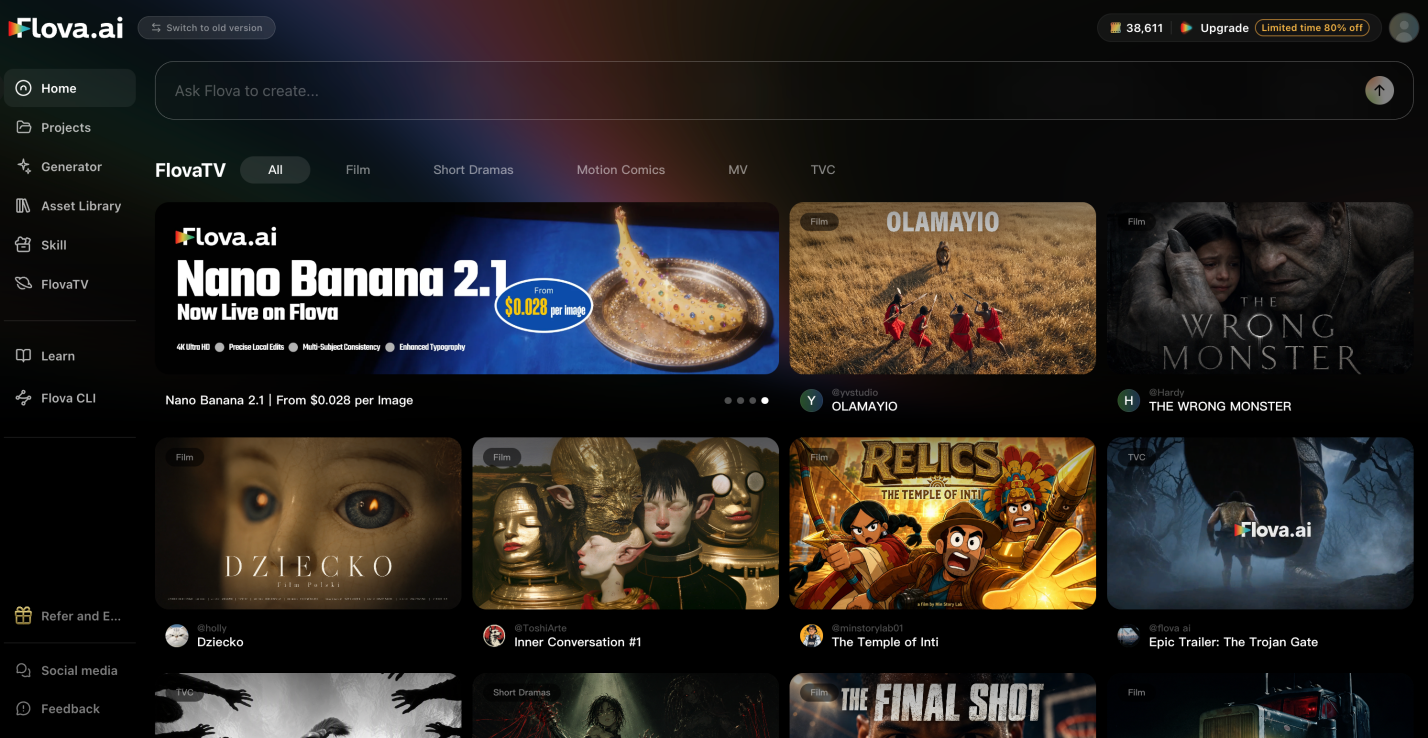
You do not always need to create a video from scratch. You may already have an image, script, audio track, or video clip to use. Flova AI assists you in creating video content using these materials by making plans, creating images, and structuring your ideas.
All these starting points provide an alternative to how a video can be created. You can bring a still image to life, create the scenes with the script, or use audio to lead the mood. By choosing the right materials and giving clear instructions, you can create a video that matches your idea.
The Image To Video Skill: Turn a Still Picture Into a Moving Scene
It is also good to begin with an image when you already have a product photo, character image or image reference. A moving scene can be initiated by a still picture using Flova's image-to-video skill. First, you can select an image that fits your idea and determine what you wish viewers to see.
Then explain what type of movement you desire in a few words. You may request a slow camera pan, passing clouds, or somebody facing the camera. Clear instructions help guide the image to video process and create natural-looking movement.
After creating the clip, evaluate whether the movement seems natural and the key information has been maintained. When required, modify your instructions and re-try them. You will be able to incorporate the clip into a bigger project by then with other sequences, audio and other visual materials.
What Changes When You Start With a Script, Video, or Audio File?
Starting With a Script
A script will provide a clear message and direction for your video. Write down your key points or descriptions of the scenes, and plan out the storyboard using these. Flova Agent can then refine the script, improve its structure, and add useful details so the video feels more complete. This is effective with product explainers, tutorials and promotion videos.
Starting With an Existing Video
A clip you have can guide the style, movement or pacing of a new project. Take appropriate footage as a guide where necessary, then make a decision on what scenes to retain, substitute, or include. Always remember to review that the end video is as per your aim.
Starting With Audio
Audio can set the mood and pace of your video. Start with a voice-over, music track, or sound recording, then plan visuals that follow its rhythm and message. Test the sound and scene timing to ensure that they are compatible.
Combining Different Materials
When the materials are appropriate to your idea, you can bring various ones into a single project. For example, combine product images, a script, and background music to create a promotional video. The first step is to organise the materials in order to make each material purposeful. If something is missing, Flova Agent can create it automatically without waiting for a separate request.
From Uploaded Material to a Complete Video
Step 1: Organise Your Files and Upload to Flova
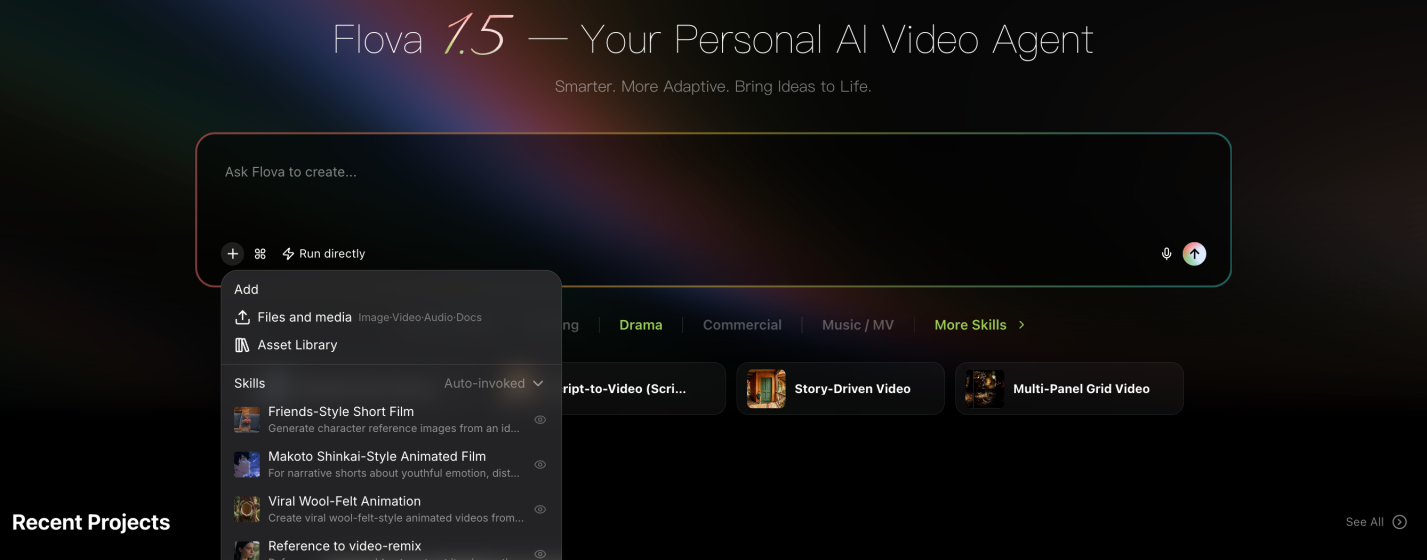
Prepare your pictures, scripts, audio and videos beforehand. Select the materials that will suit your idea the most and have the key brand information on hand.
Step 2: Plan Your Storyboard
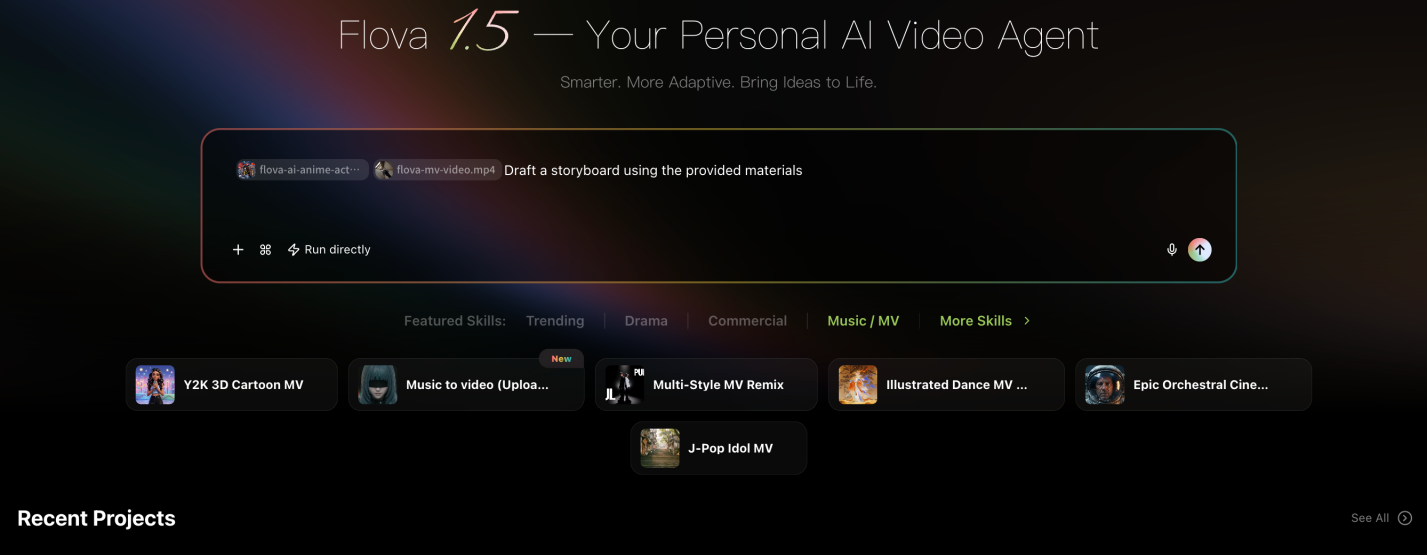
Prepare your thoughts into scenes that have a clear start, middle point and end. If you do not have a complete script, share your ideas with Flova Agent. It can refine the script first and then turn it into a storyboard. A storyboard will assist you to visualise how your content will work together before creating further materials.
Step 3: Generate Scenes From Your Storyboard
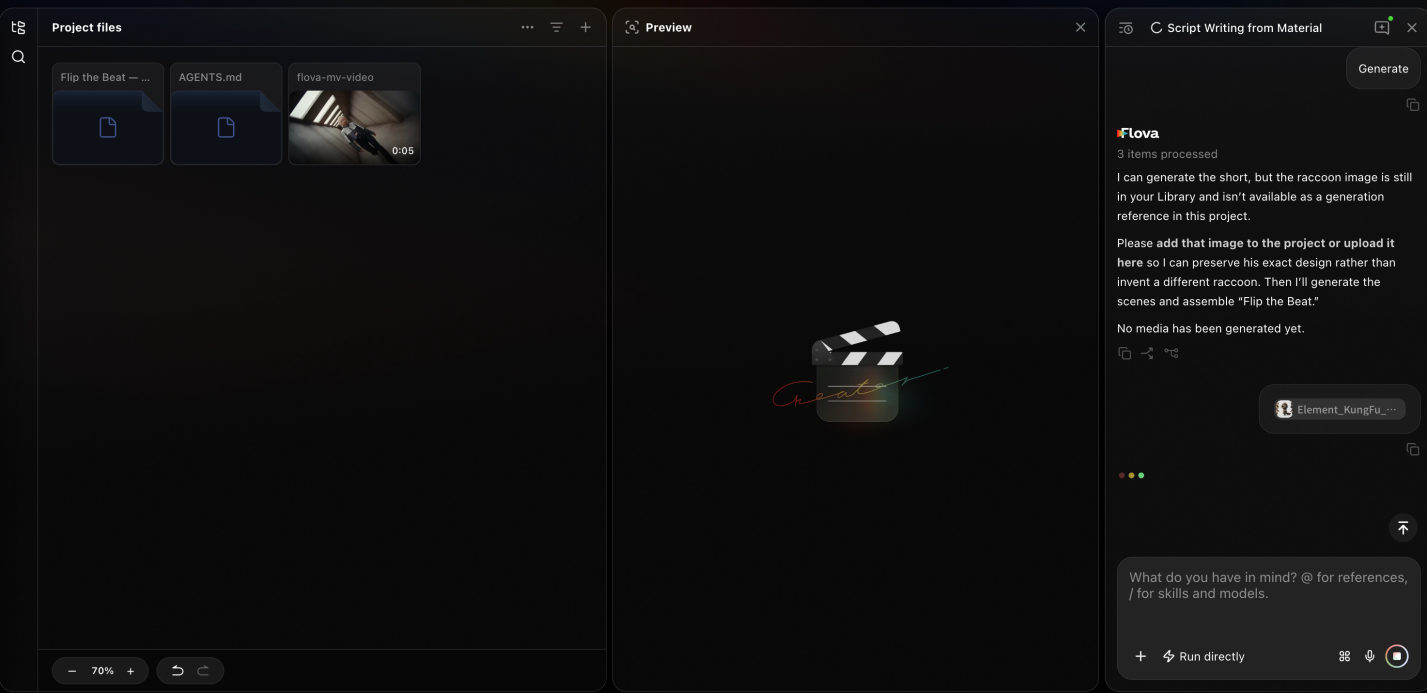
Ask the Flova AI Agent to generate each shot from your storyboard and incorporate all the materials you provided into the video. If you want to add more details, pause the generation at any time and tell the Agent what to change. It will adjust the creative direction before continuing.
Step 4: Arrange and Review Your Video
Put the chosen scenes in their appropriate sequence and verify time, sound and transitions. Add in regard to where the video is confusing or missing.
Step 5: Export the Final Video
Export after viewing the entire video. Review the visuals, audio and key details to ensure the outcome is a replication of your original idea.
How to Get Better Results From Different Starting Materials
- Use clear instructions: Explain the movement, scene, or result you want.
- Select relevant pictures: Start with pictures that are in line with your video message.
- Keep it short in the scripts: simple language and one point per scene.
- Check reference files: Ensure that you have pictures, clips, and audio to back up the same point.
- Review each scene: Fix problems before putting the full video together.
- Check sound and timing: Make sure the audio fits the visuals and scene changes.
- Check on facts: Check product names, logos and claims prior to publishing.
Choose Your Input, Then Build Your Video
You do not need to start from scratch when creating a video with Flova AI. Add an image, script, audio track, or existing video clip, then let the Agent build from there. Each type of material gives the Agent a different way to shape your project.
Choose the materials that fit your goal, arrange the scenes, review the result, and export the video. Give Flova Agent clear instructions and make adjustments where needed so the final video delivers your message.