
Why buy a Tesla P40?
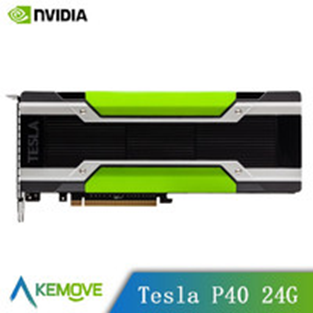
This experiment starts with the Tesla P40 compute card. Unlike an ordinary graphics card, it has no video outputs and no onboard fan. Installing it in a normal desktop PC therefore requires an additional cooling arrangement. Its intended workload is deep learning.
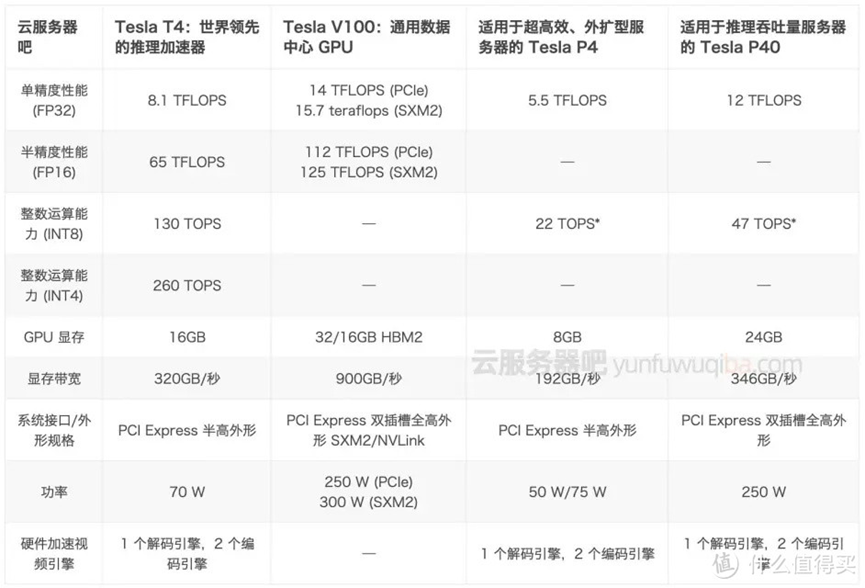
The attraction was its 24GB of VRAM and a used price a little above CNY 1,000 in the original account. The card uses a GP102 GPU. The original post compared it with an RTX 2080 Ti and described it as a powerful card held back by the lack of display outputs; that comparison was the author's assessment rather than a benchmark established in this article. The author also believed that mining use was uncommon because of the economics of running the card.
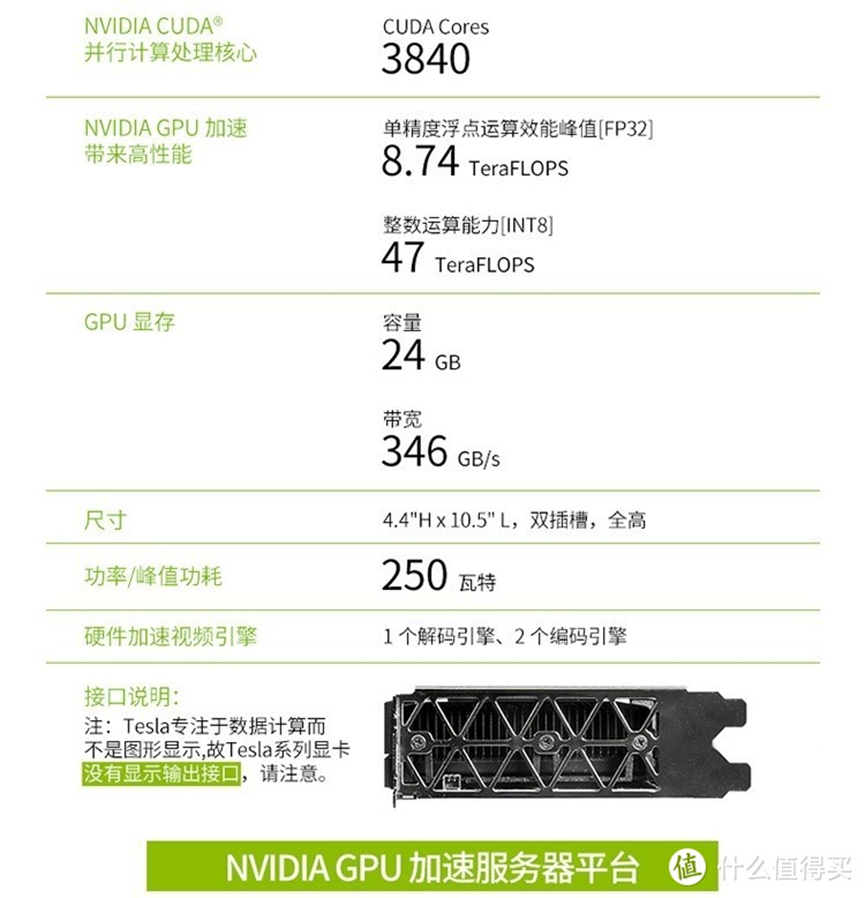
Requirements for the test platform
The original gaming experiment used the following platform requirements:
- Intel integrated graphics for display output. The author had not established whether an AMD integrated-graphics arrangement would work.
- PCIe 3.0 or later, supported by most of the motherboards considered in the post.
- Windows 10.
A separate display adapter alongside the compute card was another possible arrangement. It required multiple PCIe slots and compatible display hardware. Integrated graphics plus the compute card was the configuration the author considered the most dependable for this experiment.

Software configuration
- Start Windows 10 and inspect Device Manager. The compute card may be detected while its graphics functions remain unavailable.
- Install the Intel integrated-graphics driver.
- Install the NVIDIA compute-card driver from NVIDIA's official website.
- Open Command Prompt as administrator and run
nvidia-smi.
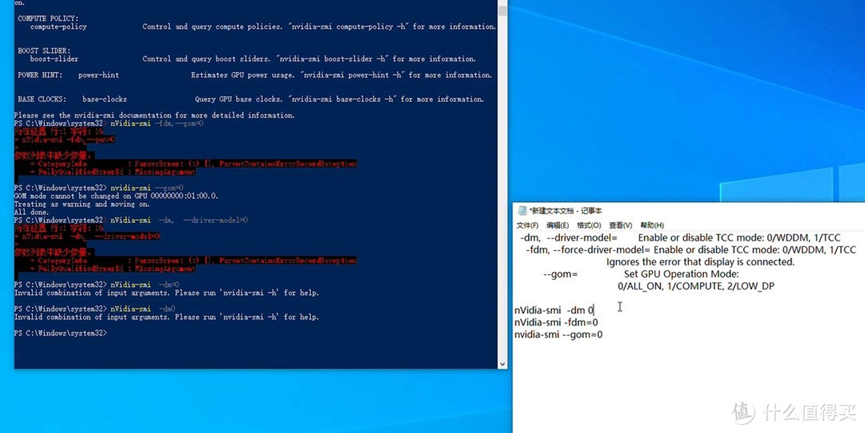
The original registry modification used the display-adapter class at:
HKEY_LOCAL_MACHINE\SYSTEM\ControlSet001\Control\Class\{4d36e968-e325-11ce-bfc1-08002be10318}In that machine, the numbered subkey 0000 represented integrated graphics and 0001 represented the compute card. These numbers describe the original machine, so identify the actual adapter before using a subkey on another system.
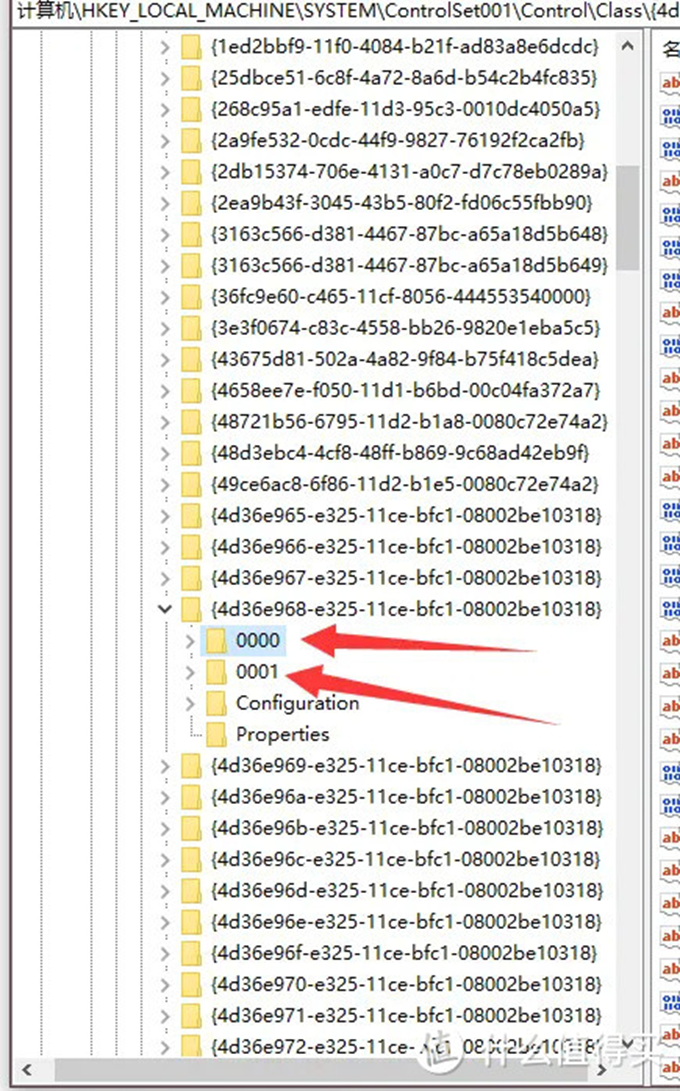
The author edited the compute card's AdapterType and EnableMsHybrid values to enable the graphics path used in the experiment, with the integrated GPU providing display output. In the example, a DWORD (32-bit) named EnableMsHybrid was created and set to 1; AdapterType was also set to 1. The post described this as enabling DirectX and OpenGL workloads through the compute card.

Testing the configuration
After completing the settings, restart Windows and inspect Task Manager to confirm which GPU is doing the graphics work.
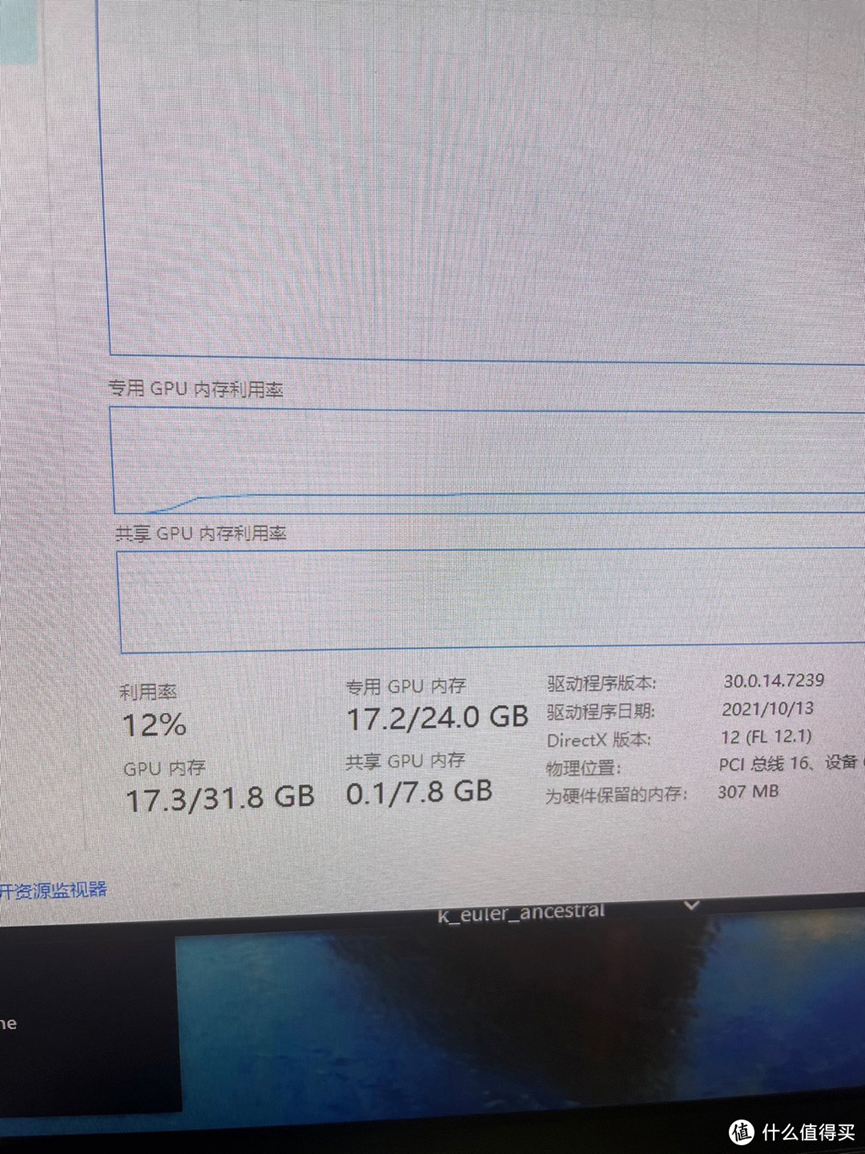
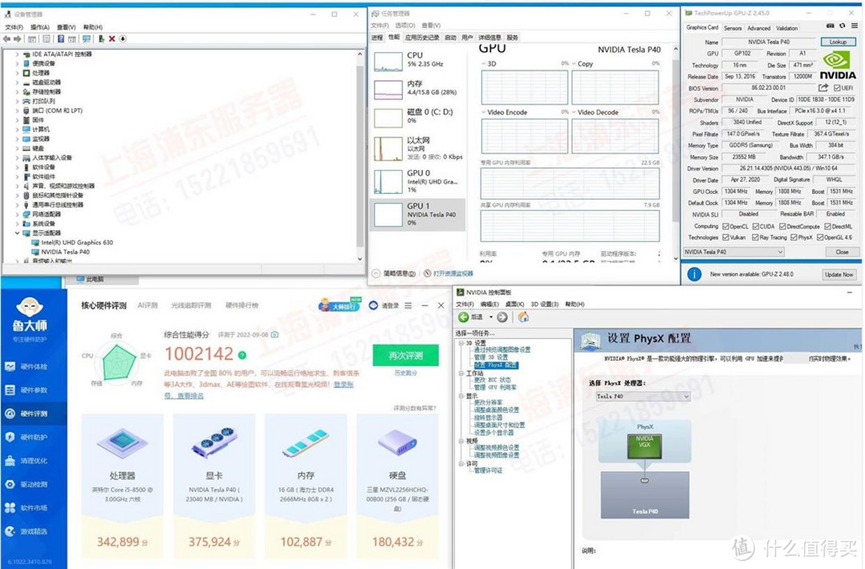
The author also adjusted the PhysX configuration in NVIDIA's settings before trying games.
What the experiment involved
The original article emphasized three times that this is not a card for someone uncomfortable with hands-on hardware and software work. For an enthusiast who enjoys modifications, the appeal was obtaining a large-memory compute card at a low used price and experimenting with graphics workloads.
The setup was complex and also involved NVIDIA drivers, CUDA and PyTorch for the broader compute environment. The author offered to write a more detailed software walkthrough if the original post reached 200 likes and saves. This article records that initial modification and test rather than supplying the additional tutorial.