1. Requirements and initial research
My laptop has a GTX 1060 with 6GB of VRAM, which can be restrictive for neural-network training. Cooling is another problem during long runs, so I decided to build a dedicated training machine. As a student on a tight budget, my requirements were simple: a low price and plenty of GPU memory.
After researching used hardware, I found the older Tesla M40 suitable for the job. At the time of the original build, a 24GB version cost about CNY 1,200 on Xianyu. Its performance was roughly comparable to a GTX 980 Ti, but being able to run a workload slowly was better than being unable to run it at all. Spending around CNY 1,300 more would have bought a Tesla P40 24GB, with performance closer to a GTX 1080 Ti. The original April 2023 update recorded used prices of about CNY 1,000 for a P40 24GB and CNY 500 for an M40 24GB.
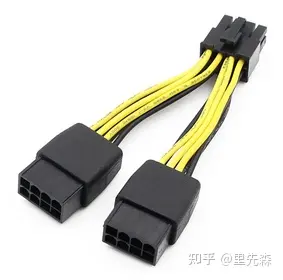
Most Tesla compute cards use passive cooling without an onboard fan. Their EPS power connection also differs from the PCIe power connector commonly used on graphics cards [1,2]. A used rack server is a natural fit: its high-speed fans supply the airflow the card needs, and its riser can provide the appropriate EPS power connection. Using an M40 in a desktop case requires attention to both cooling and power.
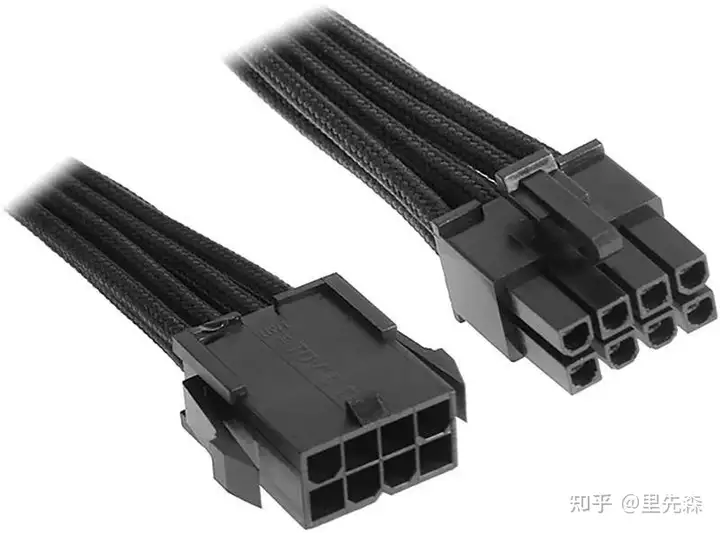
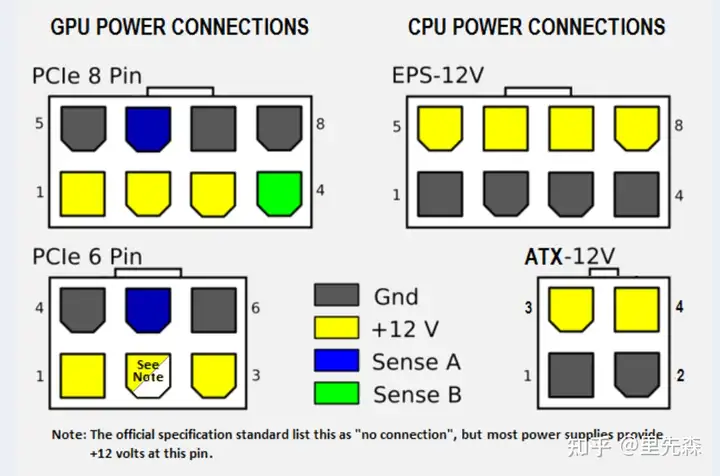
EPS and PCIe 8-pin connectors differ in their physical keying and electrical pinout. EPS commonly supplies the motherboard CPU, so an additional CPU power cable compatible with the power supply may be an option for the M40. Verify the electrical connections before connecting it. Another option is a suitable PCIe-to-EPS adapter that takes two PCIe power plugs as input.
1.1 Rack server or desktop workstation?
I initially considered a used Dell PowerEdge R720 listed on Taobao with the following configuration and quote:
| Component | Model | Quantity |
|---|---|---|
| Server | PowerEdge R720, 2U rack chassis, eight 3.5-inch bays | 1 |
| CPU | Xeon E5-2650 | 2 |
| Memory | 4GB ECC server memory | 4 modules |
| Power supply | 750W | 1 |
| Quoted total: CNY 1,695 | ||
Decommissioned server parts were inexpensive: a used 3TB SAS drive could cost about CNY 150, and a used 1,100W server power supply about CNY 120. It was harder to find reliable desktop parts at similar prices. A rack server, however, came with several practical drawbacks:
- A lengthy power-on self-test.
- A 2U chassis approximately 45cm wide and 76cm long.
- A gross weight of about 20kg.
- Very loud fans at startup.
If those limitations do not matter in your environment, a rack server offers a highly compatible setup; see the original references [3,4]. The noise made it unsuitable for my office, so I planned an X79 desktop workstation instead:
| Component | Specification | Cost (CNY) | Purchased from |
|---|---|---|---|
| CPU | Xeon E5-2650 v2 | 58 | Taobao |
| CPU cooler | Generic six-heatpipe cooler with LGA2011 mounting | 62 | Taobao |
| Motherboard | Huanan X79 Deluxe ATX board | 475 | Taobao |
| Memory | Used server DDR3 ECC 1600MHz, 2 × 16GB | 256 | Taobao |
| Storage | 500GB SATA SSD + 500GB HDD | 0 | Already owned |
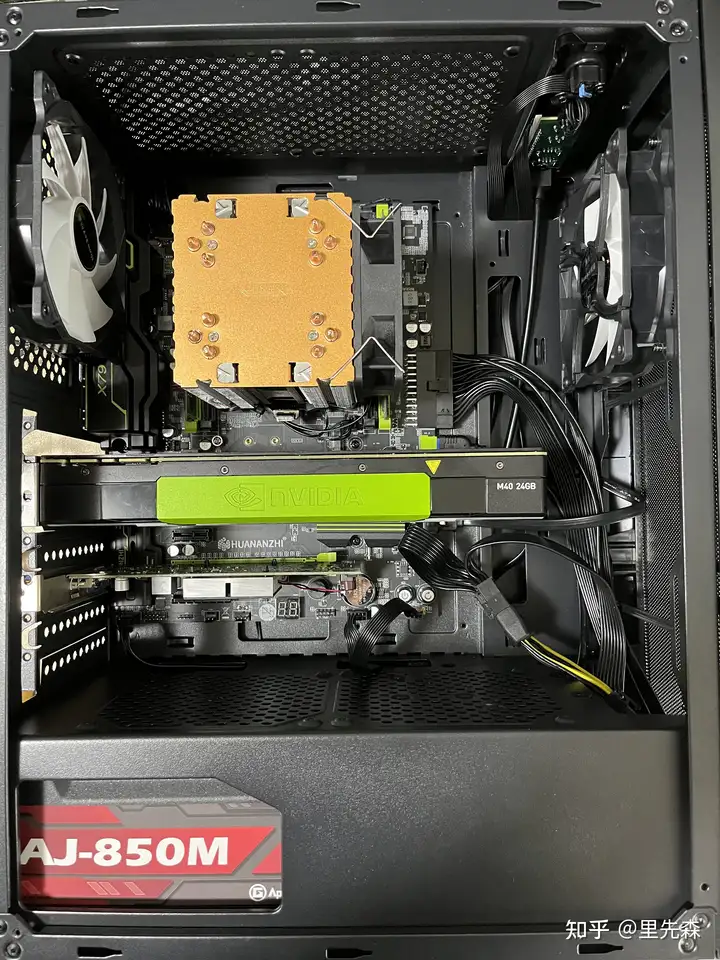
| Power supply | Used Aresgame AJ850M, 850W | 300 | Xianyu |
| Compute GPU | Tesla M40 24GB | 1,200 | Xianyu |
| Display GPU | AMD Radeon HD 8470 | 0 | Already owned |
| Case | Huntkey Dark Night Hunter 5 | 89 | Taobao |
| Case fans | 2 × Huntkey Qingfeng | 19.9 | Taobao |
| Total | 2,459.9 | ||
The storage consisted of a Western Digital SN550 500GB M.2 SSD and a 500GB hard drive taken from a laboratory machine. My university supported remote access through EasyConnect, and the Huanan X79 board allowed the boot device to be selected at startup. The plan was to install Windows 10 on the SSD and Ubuntu on the hard drive, making Ubuntu the default. Someone would only need to press the power button to start the Linux environment, after which I could connect over SSH from outside the local network.
Tmux made it convenient to keep sessions running and inspect console output; the original article linked to a guide to detaching terminals and sessions with Tmux. For ordinary desktop use, pressing F7 at startup selected Windows.
1.2 Compatibility checks
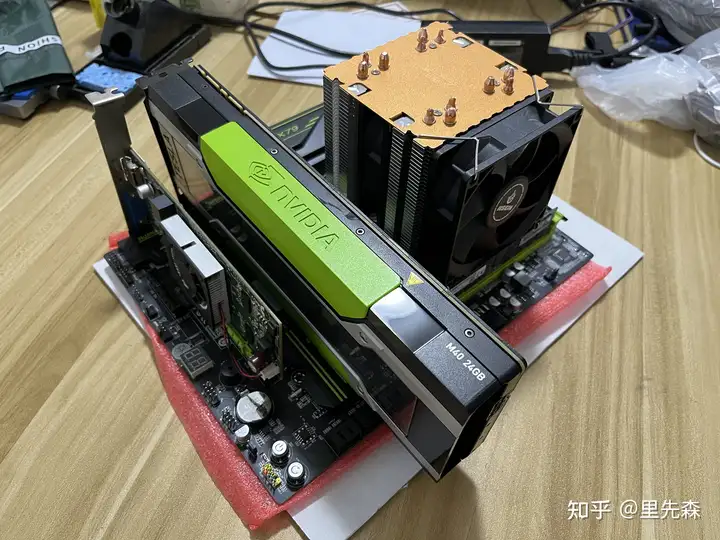
The Tesla M40 has no display output, so a desktop workstation needs a separate display adapter. I used an ATI HD 8470 taken from a laboratory machine. If the display adapter is also from NVIDIA, check driver compatibility with the M40. Following the approaches in the original references [5,6,8], I tried selecting the M40 as a high-performance GPU under Windows 10 and encountered these issues:
- Without the HD 8470 driver—including when Windows was kept offline to prevent automatic driver installation—I could assign applications to the M40 and observe it rendering. Everything else used the Microsoft Basic Display Adapter, making the desktop very slow.
- After installing the HD 8470 driver, Windows graphics preferences listed the HD 8470 for both the power-saving and high-performance options. Registry changes from reference [8] did not resolve this.
- The Windows 10 Insider build I tried showed only power-saving and high-performance choices, without a specific-GPU dropdown.
- Windows 11 did not officially support the E5-2650 v2 in this setup.
For other motherboards and power supplies, the build required:
- A BIOS option such as
Above 4G Decoding, to address the M40's 24GB of memory. - Enough PCIe slots for both the compute card and a display adapter if there is no integrated graphics.
- A suitable EPS 8-pin supply connection, or two PCIe 8-pin power cables with an appropriate adapter.
- A power supply rated above 700W for the planned system.
Allow enough case clearance for the card and its additional cooling hardware. The original build used a case rated for graphics cards longer than approximately 320mm.
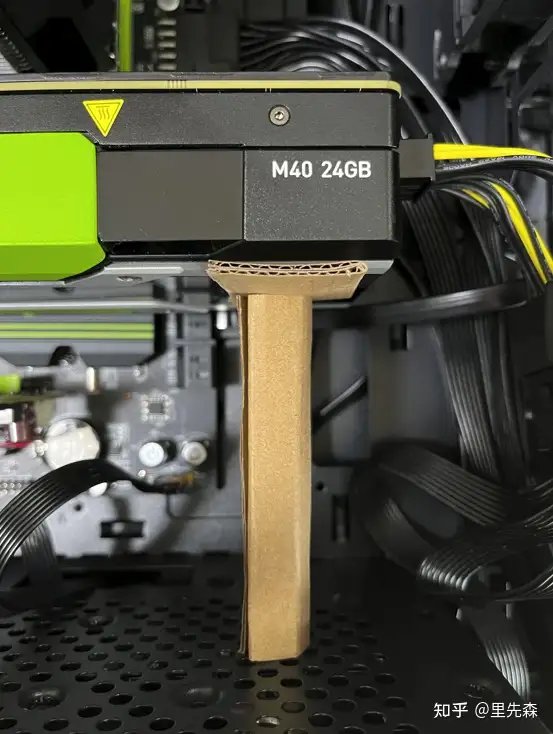
The PCIe bracket can hold the card, but an additional support is sensible because the M40 was designed for server installation. Instead of buying a GPU support bracket, I cut one from corrugated shipping cardboard. It supported the card, allowed the height to be adjusted, and absorbed some vibration.
2. Cooling modifications and installation
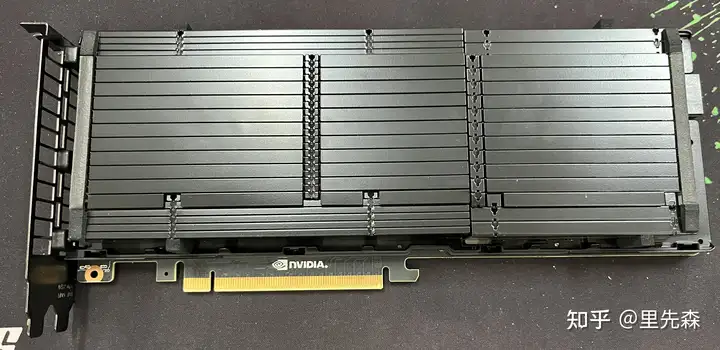
The first problem after buying the card was cooling it inside a desktop case. The M40's large passive heatsink works with server airflow, but in an ordinary workstation it can reach its thermal limit and cause instability. Common modifications include air cooling, water cooling and external fans. This build focused on lower-cost air-cooling options.
2.1 Adding external fans
Blowing air through the original heatsink with an external fan is inexpensive [5–7], but increases the card's dimensions and requires suitable mounting hardware. Options include high-speed server fans, 9cm or 12cm case fans, and laptop-style centrifugal blowers.
2.1.1 Opening the original heatsink
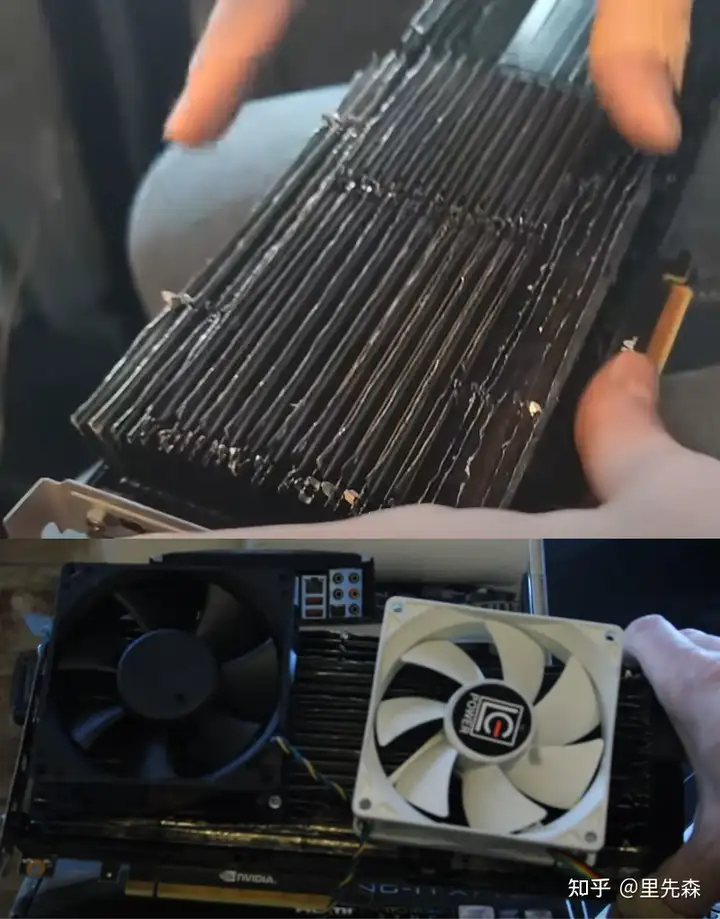
The M40 heatsink has folded sections, so approaches intended for open Tesla K80 heatsinks do not transfer directly. I did not recommend cutting open the original assembly, although the original reference [12] described such a modification.
2.1.2 A 3628 fan at the rear
I first tried a DB03628B12S server fan, measuring 36 × 36 × 28mm. It could be attached at the end of the card with screws or tape, or fitted inside a 3D-printed shroud. Direct attachment required an M3 × 35mm screw through the end mounting hole; tightening the screw or bracing against the power cable kept it from moving. For a different fan thickness, a screw about 3mm longer than the fan can be considered.
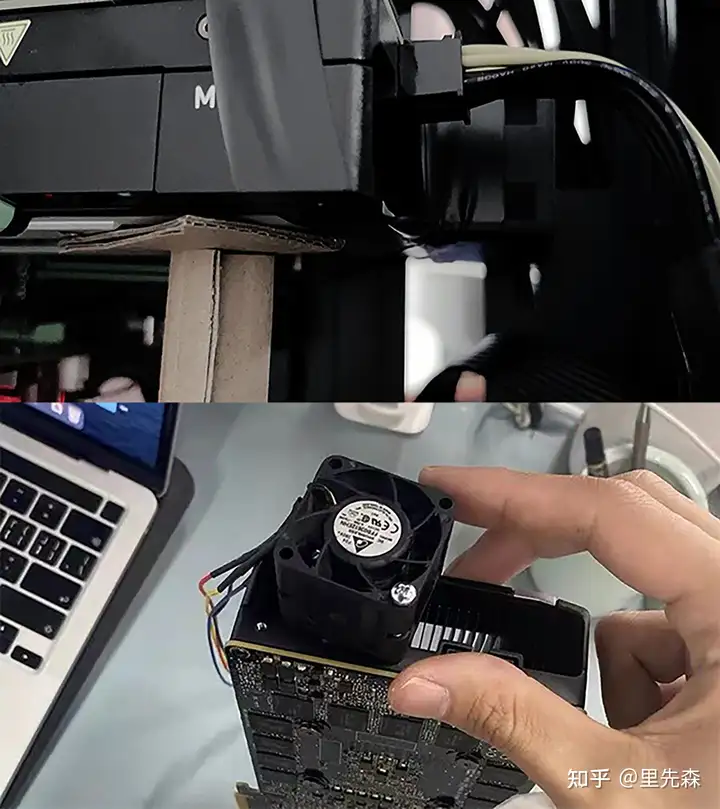
This is the cheapest arrangement and adds only the fan's 28mm thickness, but usually accommodates just one fan. A dedicated shroud can improve the arrangement. The two-fan 3628 model in original reference [10] adds about 60mm, bringing the card and fans to roughly 330mm. Check the case clearance. Shrouds designed for other Tesla cards may work only if their mounting holes match the M40's evenly spaced holes.
![The two-fan shroud model from original reference [10].](https://pic2.zhimg.com/80/v2-9a8ceb4eaa20978bf55c11c2f8276881_720w.webp)
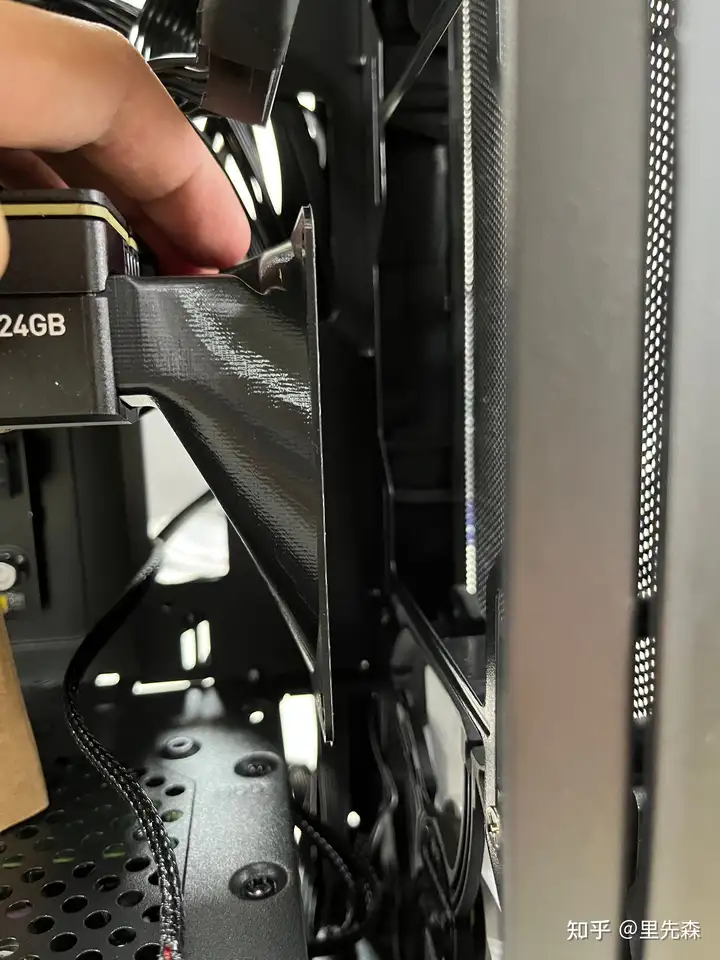
2.1.3 A 9cm rear fan
Small fans need high rotational speeds to move more air, which creates noise. Even with speed control, I struggled to find a satisfactory balance. A shroud for a larger fan was another possibility; some Xianyu sellers offered designs for 9cm fans that could be purchased and printed.
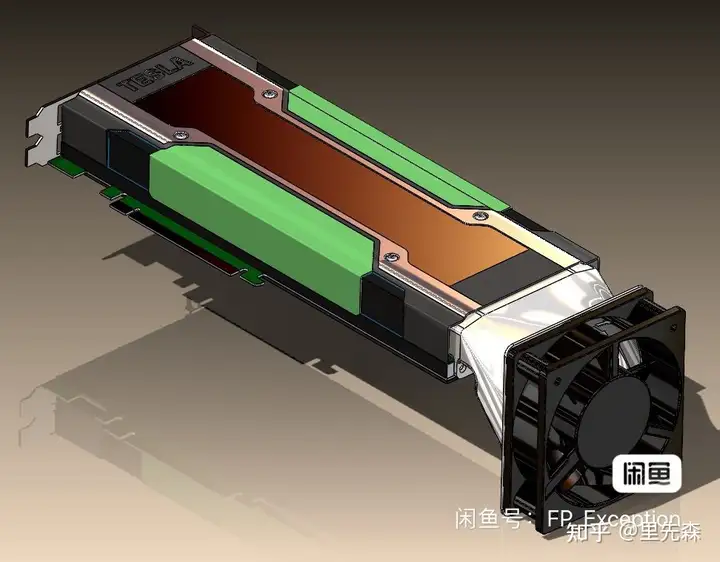
The shroud brings the card assembly to about 300mm before adding the fan. Most 9cm fans are 25mm thick, although some slim models are 15mm. The complete assembly can therefore reach about 325mm and occupy space below the card.
2.1.4 A 4020 centrifugal blower
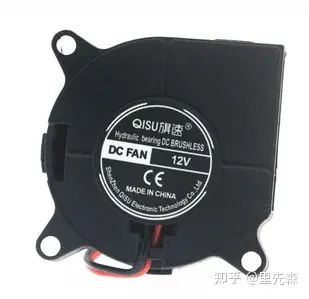
A 4020 centrifugal blower can fit directly at the heatsink inlet. The unit I bought produced disappointing airflow, so I did not pursue that approach.
2.2 Replacing the cooler with an active heatsink
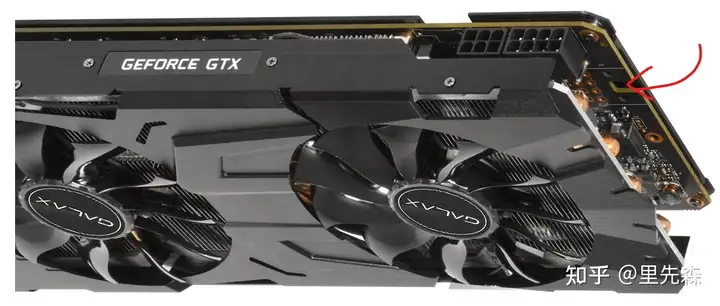
Limited case space led me to replace the original passive assembly with an active cooler. The replacement needed 58 × 58mm mounting-hole spacing and enough room around the EPS power connector. It also needed a way to secure the PCIe bracket, rather than leaving the slot to support the whole card. Coolers mentioned by other modifiers included:
- GALAX GTX 1080 Ti EXOC.
- Colorful RTX 2080 Ti Turbo.
- Gainward GTX 1080 Ti Wind Chaser.
- GALAX overseas-edition GTX 960/970.
- GALAX GTX 970 HOF Black General.
These coolers leave space for a power connector at the rear, and most would require some heatsink-fin trimming to fit the M40. A GTX 1080 Ti-class cooler or better was preferred for cooling capacity. I personally confirmed only the GALAX GTX 1080 Ti EXOC modification; other models still needed their fit checked.
2.2.1 Removing the original cooler
Disassembly involved removing the screws listed below:
| Position | Screw | Quantity |
|---|---|---|
| Outer housing | Hex-socket countersunk M2 × 5 | 8 |
| Backplate | Phillips countersunk M2.5 × 5 | 1 |
| Backplate | Phillips countersunk M2.5 × 7 | 14 |
| GPU heatsink | Phillips spring screw M2.5 × 9 | 4 |
| PCIe bracket | Phillips countersunk M2.5 × 5 | 3 |
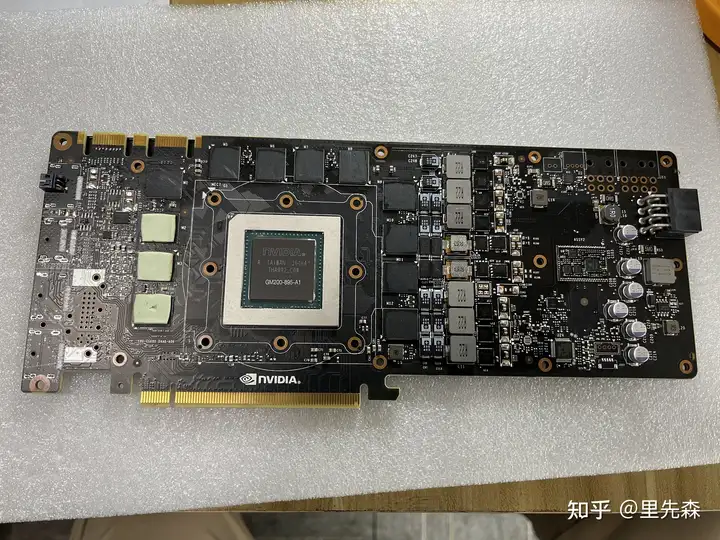
Most used replacement coolers do not include a backplate, so I retained the original one. The build used 1.5mm thermal pads when replacing pads on the rear memory; that thickness also suited the front memory in this modification.
2.2.2 Installing the active cooler
The materials used in the original modification were:
| Item | Details | Purchased from | Cost (CNY) |
|---|---|---|---|
| Cooler | GALAX GTX 1080 Ti EXOC | Xianyu | 100 |
| Thermal paste | Shin-Etsu 7921 | Taobao | 10 |
| Thermal putty | 20g, rated 7W/m·K | Taobao | 33.9 |
| PCIe bracket | Matching GALAX GTX 1080 Ti EXOC bracket | Taobao | 15 |
| Fan controller | Temperature-controlled DC voltage module | Taobao | 10 |
| Screws and washers | M2/M3 parts for the cooler | Already owned | — |
| High-temperature tape | Insulation and controller mounting | Already owned | — |
| Extension wires | Extending the cooler fan's power cable | Already owned | — |
| Total | 168.9 | ||
The 7W/m·K putty had a conductivity rating close to Laird HD90000. My training tests suggested that this specification was unnecessary for the M40's heat output; a product rated around 3W/m·K could reduce the cost. The 20g quantity covered the memory and power components on one side only. Replacing the rear memory interface as well would call for about 40g.
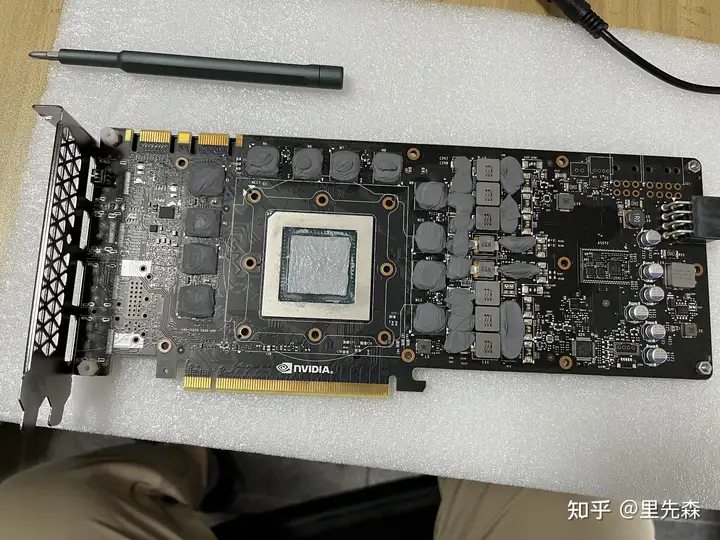
I trimmed the heatsink fins, extended the fan power cable, and secured the cooler with screws. Although the EPS pins nearest the cooler are ground connections, I covered the freshly cut edges with high-temperature tape to reduce the chance of scratches or shorts during later disassembly. Some mounting points needed washers, so having around ten M3 washers ready was useful.
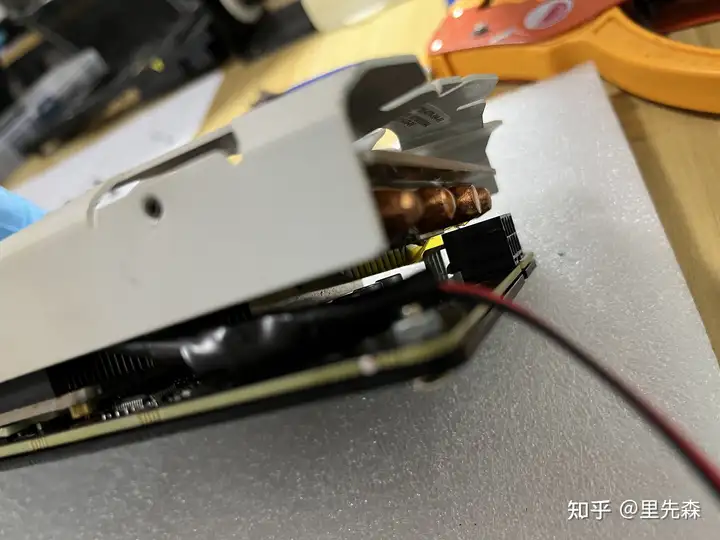
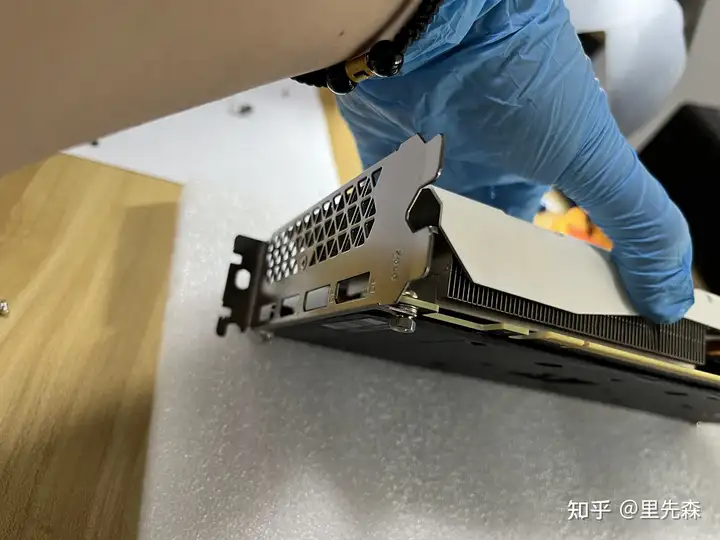
2.2.3 Installing the card
After checking for shorts, I installed the card for testing. I first fitted the temperature-controlled fan module, insulated its metal probe head with high-temperature tape, and placed the probe between the heatsink heatpipes where it would not touch the fan blades.
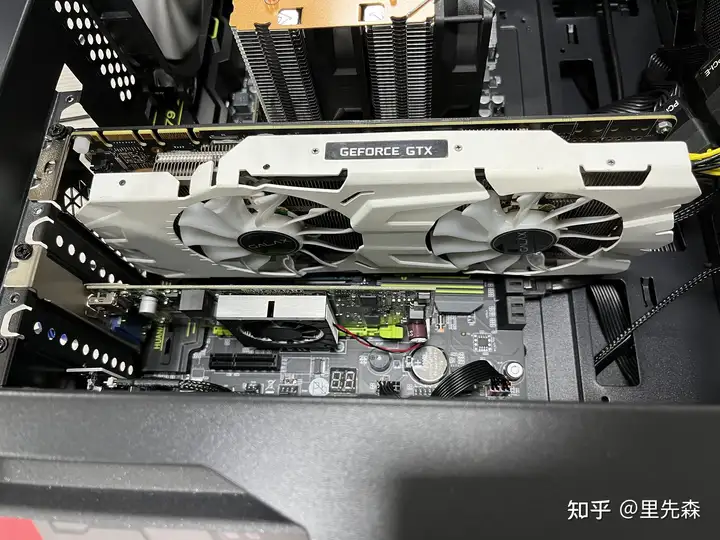
3. Cooling and training tests
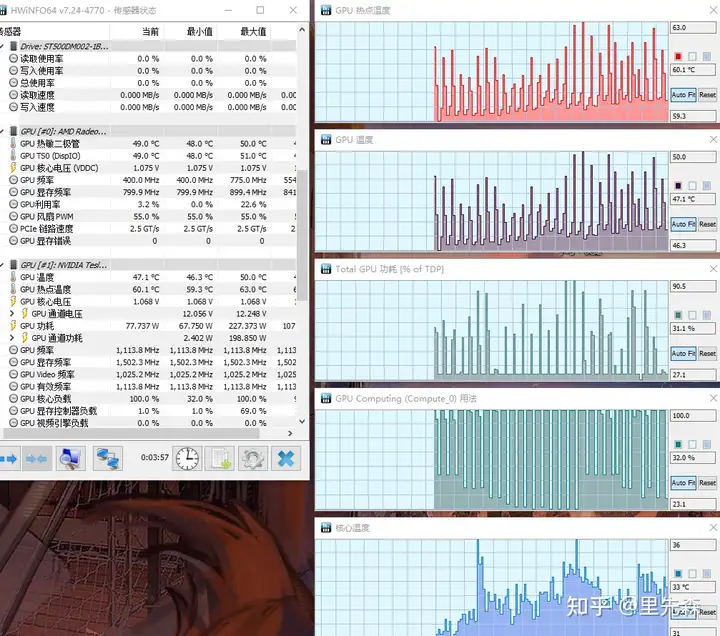
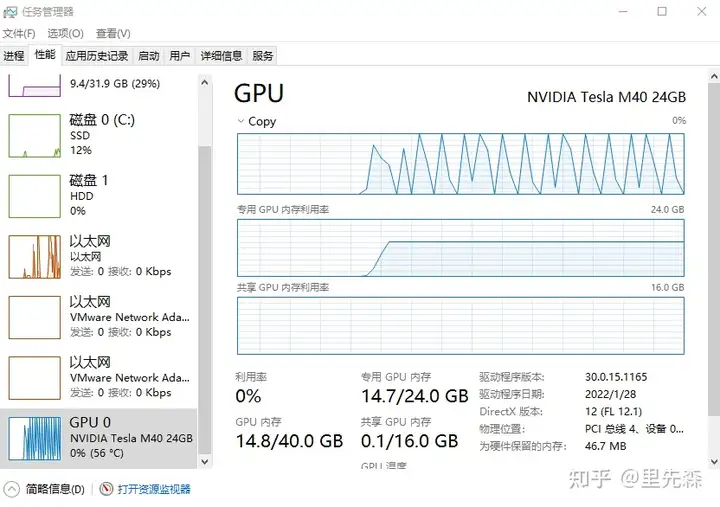
I used Ki-UNet training to test cooling and memory capacity. GPU utilization fluctuated, possibly because of the network architecture, so the measurements were indicative rather than a constant full-load stress test. The GPU hotspot stayed below 70°C, with an average temperature of about 50°C. The dataset contained 512 × 512 images, scaled by 0.5 for training, and VRAM use reached 14.7GB.
The machine sat about 20cm from me. I could hear the temperature controller adjusting fan speed during training, but overall noise remained acceptable.